

Chapters · Chapter 8 of 9
Apply Windows runtime settings
Inspect live master audio and apply Profiles that control Mute.
Joining here?
Stop Pinman, run this command, then start Pinman again. It rebuilds the sample project up to this point, discarding any work you have already done in it.
pinman tutorial goto runtimeWhat to expect#
Registry values are stored settings. Windows runtime settings are live device state—there is no file to read, so Pinman asks Windows directly. In this chapter, you'll inspect master Volume and Mute, change Mute outside Pinman, then apply Profiles that control it.
These steps change your computer's real mute state. Skip the write steps if muting or unmuting could interrupt anything.
Steps#
Inspect Windows master audio#
- Open Explore and expand Windows Settings → Sound → Master.
- Note the two tracked properties, Volume and Mute.
- Toggle mute from the keyboard or Windows system tray.
- Select Refresh to see the new value.
The screenshot shows how both runtime values are represented. On this machine,
Volume changed from 0.18 (18%) to 0.68 (68%), while Mute changed from
False to True. You only need to change Mute for this walkthrough.

Apply the master audio Profiles#
The tutorial ships two small Profiles for this setting: one turns Mute on and the other turns it off. This lets you apply a known state instead of changing it by hand.
- Open Profiles and select Master Audio — Mute to open its Preview.
- Check Disable read-only for this action, select Apply, then close the Preview.
- Check that your computer is muted and the Profile reports In sync.
- Select Master Audio — Unmute to open its Preview.
The screenshot shows the Master Audio — Unmute Preview before it is applied.
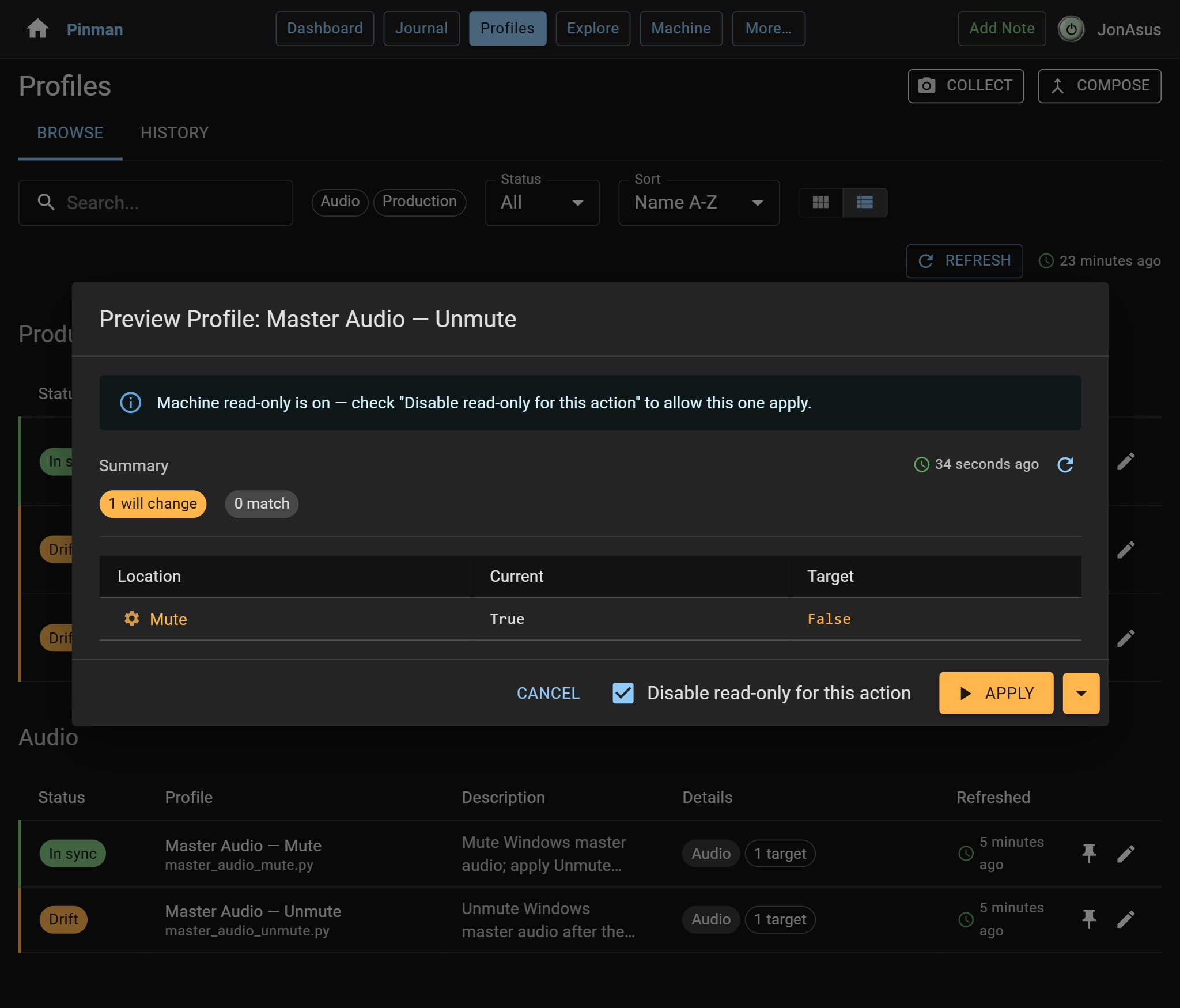
- Check Disable read-only for this action, select Apply, then close the Preview.
- Check that your computer is unmuted and the Profile reports In sync.
- Toggle mute from your keyboard or system tray.
- Back in Profiles, select Refresh.
Master Audio — Unmute now reports Drift because its target no longer matches the live setting.
What we did#
You inspected live Windows settings, changed Mute outside Pinman and used Profiles to apply known audio states. Changing Mute again showed the Profile drifting from its target.
You have now tracked state in files, the Registry and live Windows settings. In the final chapter, you'll see how Pinman models the hardware, connections and software that make up the machine itself.
Instructions#
-
Open Explore and expand Windows Settings → Sound → Master.
-
Note the two tracked properties, Volume and Mute.
-
Toggle mute from the keyboard or Windows system tray.
-
Select Refresh to see the new value.
-
Open Profiles and select Master Audio — Mute to open its Preview.
-
Check Disable read-only for this action, select Apply, then close the Preview.
-
Check that your computer is muted and the Profile reports In sync.
-
Select Master Audio — Unmute to open its Preview.
-
Check Disable read-only for this action, select Apply, then close the Preview.
-
Check that your computer is unmuted and the Profile reports In sync.
-
Toggle mute from your keyboard or system tray.
-
Back in Profiles, select Refresh.