What is this machine’s configuration right now?
There is no single place to look.

PINMAN 2 · BUSINESS & IT
Track selected configuration across files, the Windows Registry, Windows settings, and device settings. See what changed, recover a specific setting, or apply a defined configuration across applications—on one Windows PC, standalone or beside the fleet tools you already run.
Pinman gives people, scripts, and AI agents selected state, change history, defined operations, and a way to verify results. It is an endpoint-local state and change-control layer—not a centralized fleet control plane.
The evaluation begins with a time-limited Pro trial, a sandbox project that doubles as a tutorial and demo, and a focused Getting Started guide. Pinman is a platform: downloadable kits carry the domain knowledge, so it is not limited to any one kind of machine.
THE CONFIGURATION PROBLEM
On a real working machine, configuration is scattered across application files, databases, the Windows Registry, and settings exposed only through Windows or device APIs.
There is no single place to look.
An application rewrote its configuration, an update changed a value, or someone made a one-off adjustment—and nothing recorded the complete result.
Without rebuilding the machine or overwriting unrelated changes that are still correct.
Without reopening several applications and recreating the same coordinated changes by hand.
HOW PINMAN WORKS
A Schema defines the specific files, Registry areas, Windows settings, and device settings Pinman may inspect or change. Pinman does not attempt to track the entire PC.
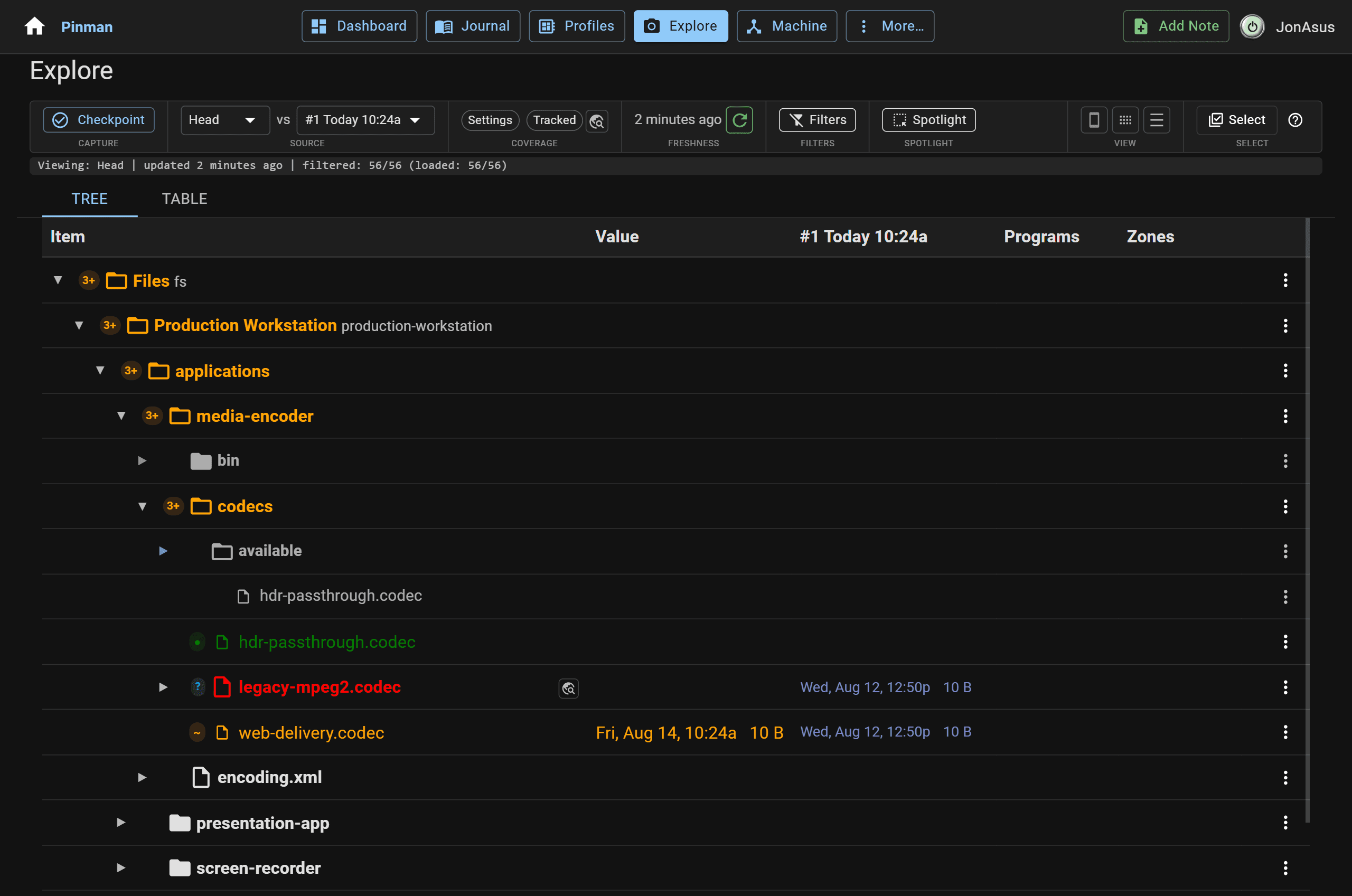
Each tracked Item has its own current value, Capture history, and before/after comparison. The point is not merely to report that a file changed, but to show which selected value changed.
CAPTURE
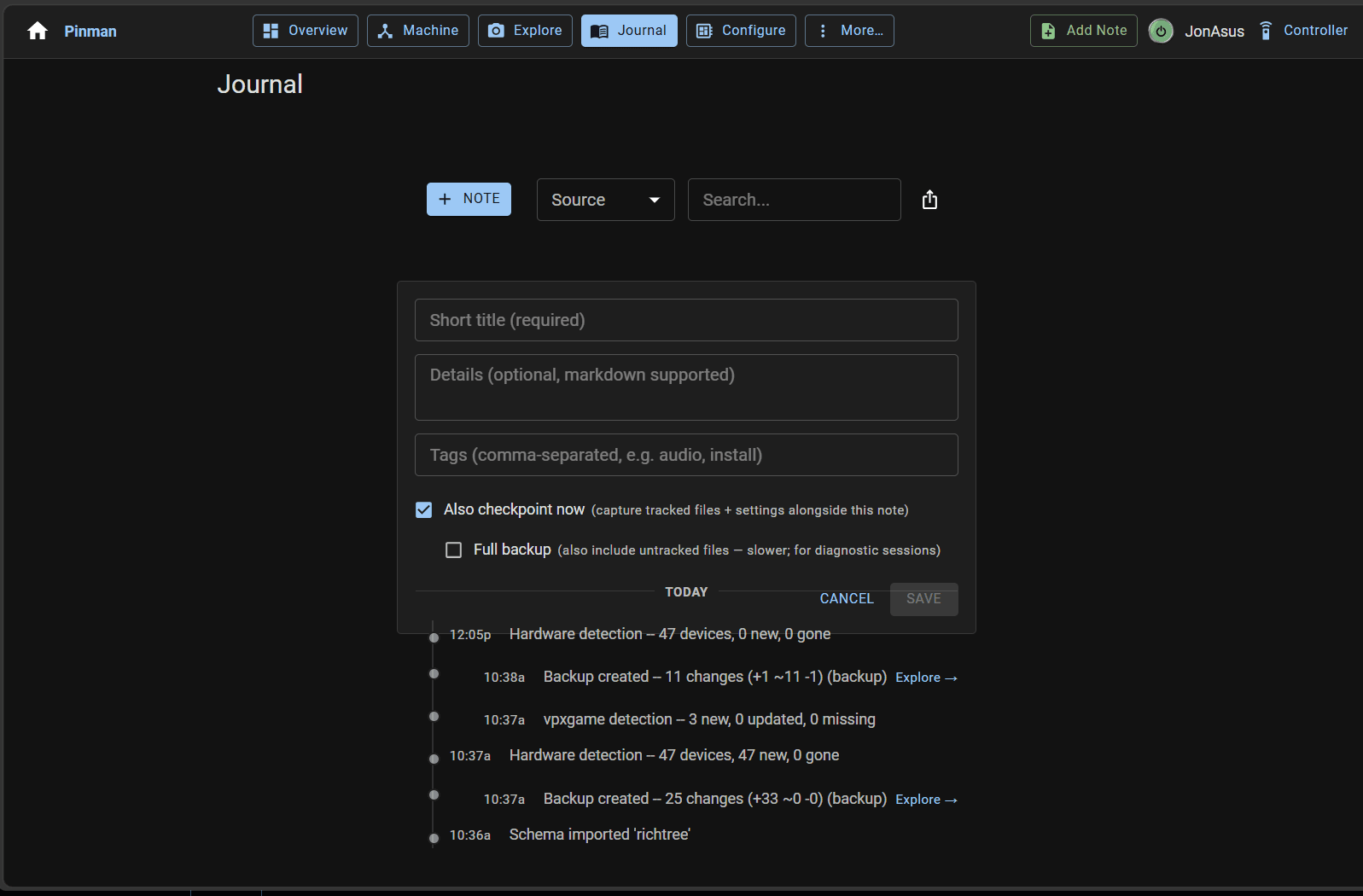
A Checkpoint records current values and change; a Savepoint also preserves the tracked file data needed for recovery.
COMPARE
Compare the live Machine with a Capture or intended Profile.
RECOVER
Recover tracked settings or file data from a Savepoint without rebuilding the machine or restoring an entire system image.
APPLY
Apply a Profile across the selected files and settings it covers while leaving unrelated configuration untouched.
Use the Pinman UI directly, or work through CLI, REST, and MCP interfaces for scripts, automation, and AI agents. Role-based logins separate day-to-day operation (Operator Mode) from configuration work (Technician Mode).
DAY 2 CONFIGURATION WORK
A dedicated Windows PC behaves differently after an application, driver, or operating-system update. Compare the live Machine with an earlier Capture, identify the selected values that changed, preserve intentional changes, and correct only the configuration that drifted.
One machine may have several valid configurations for different displays, hardware arrangements, application modes, or performance requirements. Profiles coordinate the selected changes across applications without a whole-machine restore.
PINMAN + AI
Configuration that is normally scattered across opaque formats becomes a structured, queryable view with selected state, Capture history, Journal context, and intended Profiles.
The Schema defines the locations Pinman may inspect or change. The installed tier defines which operations are available. Changes follow named operations that can be captured, compared, verified, and recorded rather than unrestricted system access.
Pinman does not ship an AI model or agent. It supplies the UI, CLI, REST, and MCP surfaces through which your tools work.
By collecting selected PC state and change history over time, your organization can build a longitudinal dataset for grounding or training internal AI models on its own infrastructure.
ALONGSIDE THE TOOLS YOU ALREADY RUN
Endpoint and configuration-management tools deploy and enforce policy, applications, updates, and baselines across managed devices. Pinman works on what an individual machine actually became: selected setting history, drift, recovery, and deliberate configuration changes.
| Category | Familiar examples | What that category is for | What Pinman adds |
|---|---|---|---|
| Backup and restore | Veeam, Acronis | Recover files or whole-system images | A per-setting view of selected configuration and selective recovery |
| Drift and compliance monitoring | Tripwire, Qualys | Report deviation from a standard | Capture, compare, recover, and apply through the same selected model |
| Endpoint and configuration management | Group Policy, Configuration Manager/SCCM, Intune | Deploy and enforce baselines across managed devices | Versioned history and deliberate changes deep within one machine, including application and vendor settings |
Veeam, Acronis
Tripwire, Qualys
Group Policy, Configuration Manager/SCCM, Intune
Pinman complements these categories. It does not replace them wholesale.
ALONGSIDE EXISTING TOOLING
Fleet tools continue to own policy and baseline management. Pinman adds per-machine Capture, drift, recovery, and operator or agent access.
STANDALONE
For one or a few highly individual machines, Pinman supplies the configuration history, Profiles, recovery, and UI without a central control plane to deploy.
A WORKING EVALUATION, NOT AN EMPTY INSTALL
The sandbox project runs the real Pinman on your real machine — a guided tutorial and a safe place to experiment, with nothing outside it touched.
Support and consulting services are available to help design and implement how Pinman can be used in your organization.
Discuss your organization →CLEAR EXPECTATIONS
Pro is a one-time, non-subscription license covering up to three of your own machines (Windows PCs), with offline use and license recovery. Free during the beta.
Every Pro capability is available during the closed beta. Beta access ends when Pinman 2.0 is released.