

Chapters · Chapter 3 of 8
Explore captured state
Drill from directories and files into individual settings, spotlight tagged items, and reveal nearby untracked files.
Joining here?
Stop Pinman, run this command, then start Pinman again. It rebuilds the sample project up to this point, discarding any work you have already done in it.
pinman tutorial goto exploreWhat to expect#
You just captured a Checkpoint holding the current tracked application settings. Now let's use the Explore page to examine them. You'll drill down from folders to files, then into structured data files and their individual settings. You'll also broaden the view to reveal nearby files that the tutorial schema deliberately does not track.
Steps#
Exploring directories#
- Open Explore from the main navigation.
On the Explore page, you'll see these top-level nodes for tracked state:
- Files
- Registry
- Windows Settings
Expanding a folder reveals its child files and subdirectories.
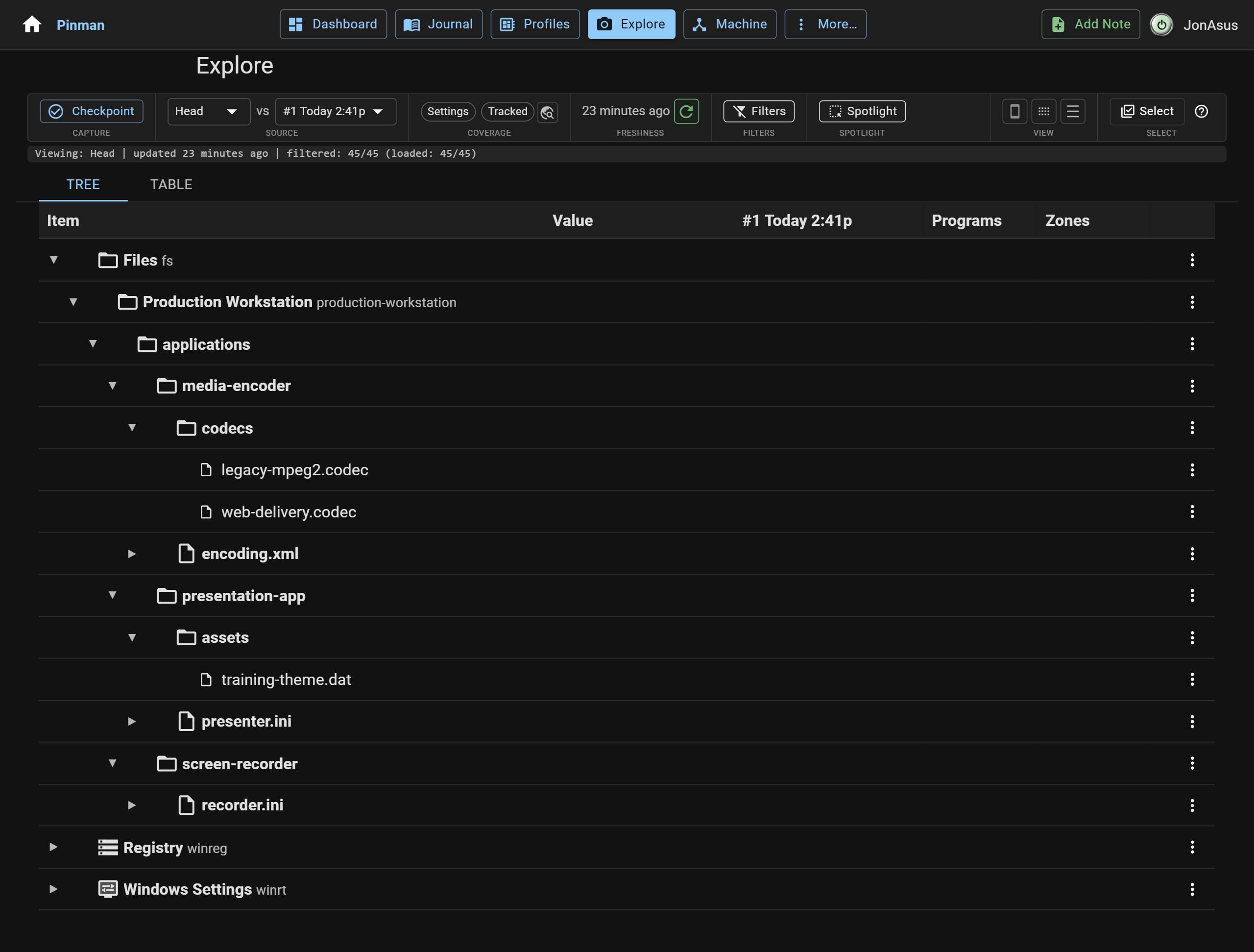
- Expand Files → Production Workstation → applications.
- Expand the application folders:
media-encoder,presentation-app, andscreen-recorder.
The following screenshot shows the tree with subdirectories expanded.
Exploring data: XML and INI#
In Pinman, you can keep drilling down beyond directories and into the structure and properties of supported data files.
- Locate
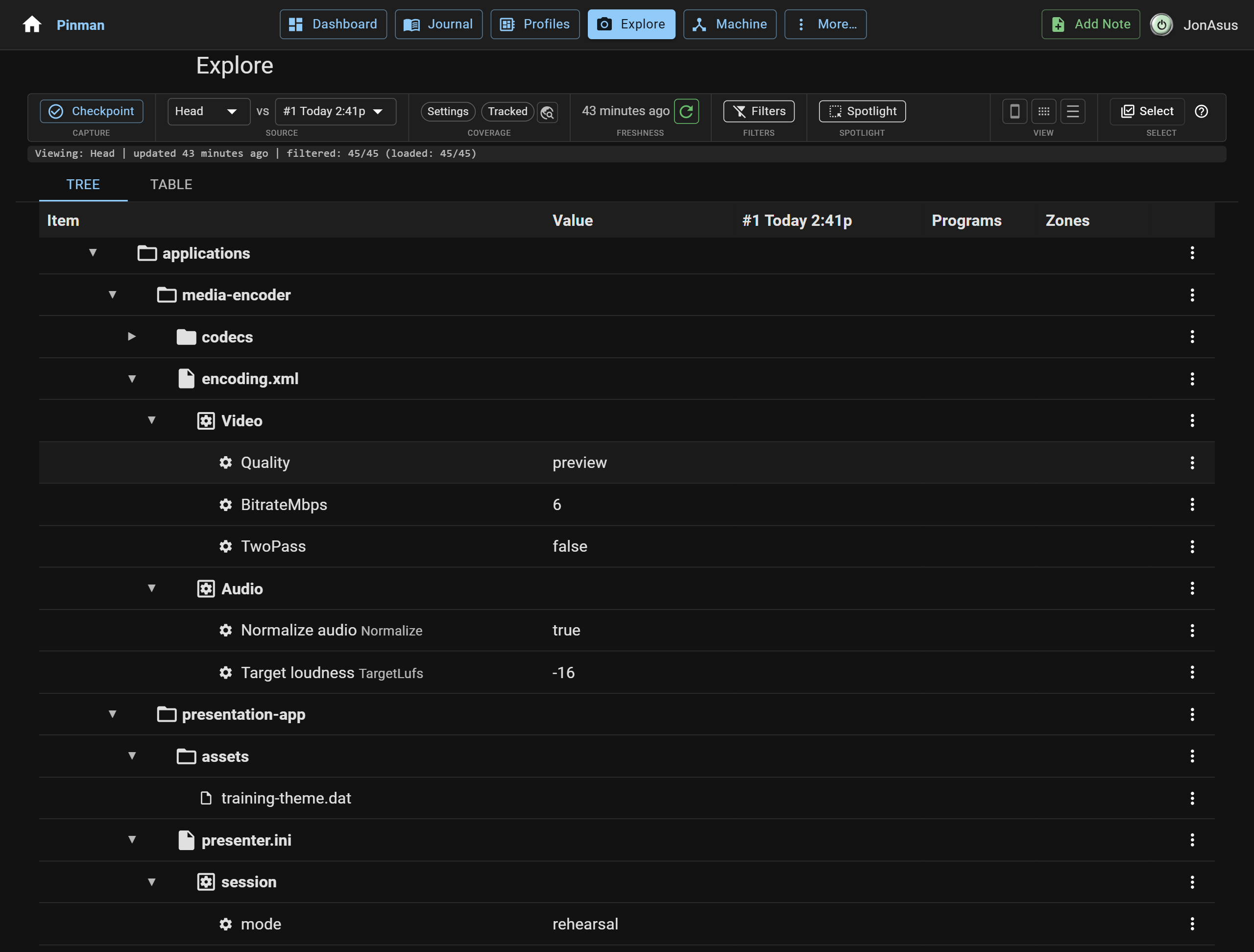
encoding.xmlunderapplications/media-encoder, and expand it to reveal itsVideoandAudiosections. - Expand each section,
VideoandAudio, to reveal the leaf properties within.
The following screenshot shows encoding.xml expanded in the tree, with the
current value beside each property.
- Like the
encoding.xmlfile, try also expanding thepresenter.iniandrecorder.ini(underpresentation-appandscreen-recorder, respectively) the same way to see their properties.
Structured data behaves like a directory tree: a file might contain sections, and a
section contains settings. You should find values such as mode = rehearsal,
frame_rate = 30, and Quality = preview.
Spotlighting tagged items#
Hovering over an item reveals additional actions and properties, including Zone
and Program tags. For example, the Audio section within encoding.xml carries
three Zone tags -- Audio:Program, Production and Production:Encoding -- as
shown below. The second half of Audio:Program names a zone, not a Program tag;
Program tags come from the software your schema attaches to an item.

Select a Zone or Program tag to spotlight matching items; use filters for other properties.
Discovering untracked items#
So far you've explored items prescribed by the schema imported during project installation. When you created the Checkpoint, you set Scope to Tracked only, but you can still broaden the Head view without changing that Checkpoint.
A broadening rescan reveals one level at a time, so each newly revealed folder must be scanned in turn.
- Hover over the
screen-recorderrow to reveal Scan for untracked here button (the global-icon), and press it.
The following image shows the Scan for untracked here icon-button on the screen-recorder row:

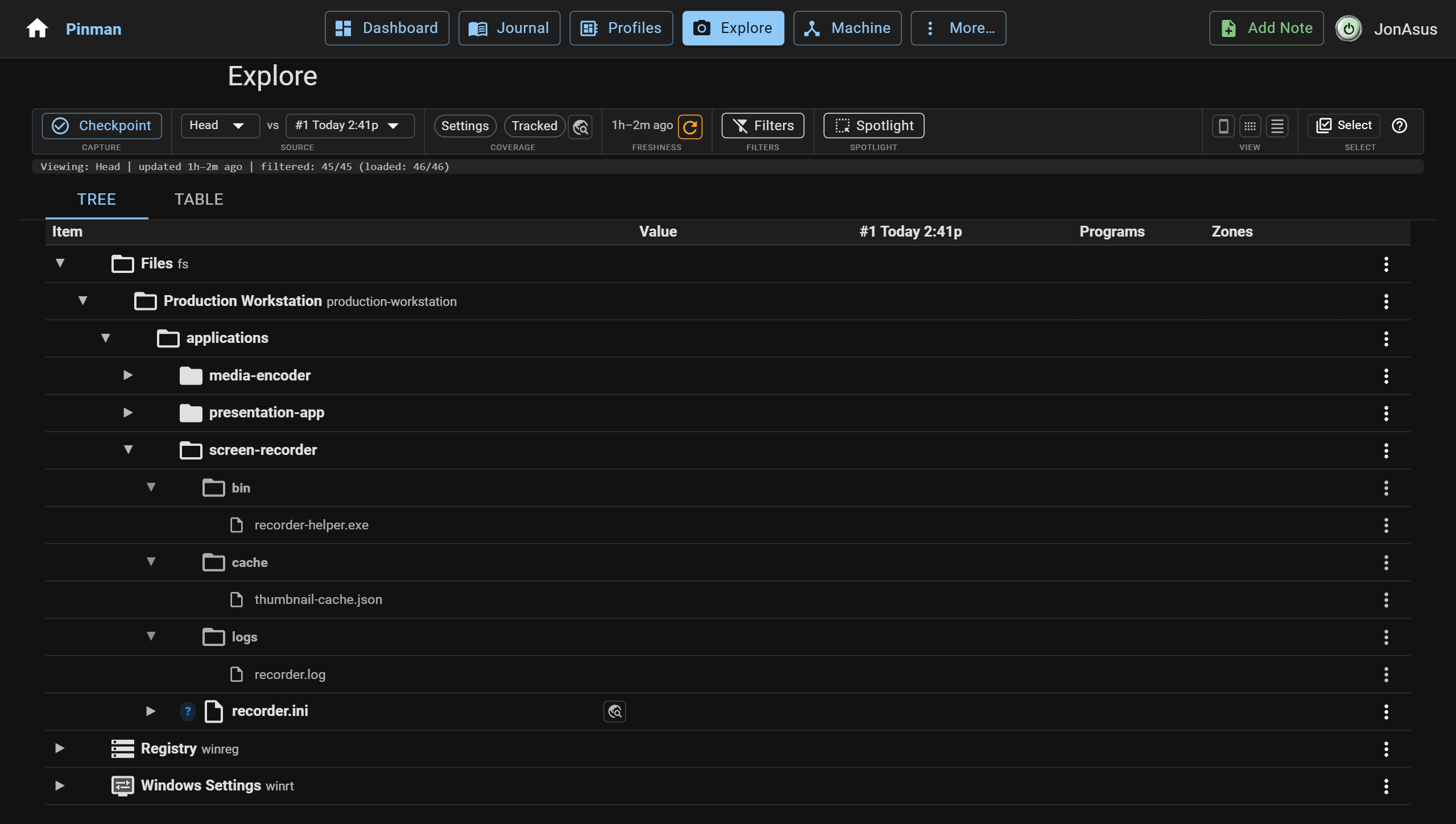
- Expand the newly revealed
bin,cache, andlogsfolders to see their untracked contents. - Repeat the Scan for untracked here and expanding on the
media-encoderfolder, its subfoldercodecsfolders, andcodecs/available.
As shown in the following screenshot, you can now see the untracked files along with tracked ones, including executables, cache, and log files. They were present on disk all along; the schema simply did not treat them as configuration.
Scope and granularity answer different questions#
Scope asks which items belong in the view or Capture. Tracked only limits the view or Capture to items prescribed by the schema; discovery also includes nearby untracked items.
Granularity asks how deeply Pinman understands each included item. Files only treats each file as a whole; Files + settings also parses supported structured files into their individual settings.
What we did#
You used the schema as a map of important state, drilled into settings, and temporarily widened the live view to investigate untracked neighbors.
Now let's make some changes to the workstation's codec configuration.
Instructions#
-
Open Explore from the main navigation.
-
Expand Files → Production Workstation → applications.
-
Expand the application folders:
media-encoder,presentation-app, andscreen-recorder. -
Locate
encoding.xmlunderapplications/media-encoder, and expand it to reveal itsVideoandAudiosections. -
Expand each section,
VideoandAudio, to reveal the leaf properties within. -
Like the
encoding.xmlfile, try also expanding thepresenter.iniandrecorder.ini(underpresentation-appandscreen-recorder, respectively) the same way to see their properties. -
Hover over the
screen-recorderrow to reveal Scan for untracked here button (the global-icon), and press it. -
Expand the newly revealed
bin,cache, andlogsfolders to see their untracked contents. -
Repeat the Scan for untracked here and expanding on the
media-encoderfolder, its subfoldercodecsfolders, andcodecs/available.