

Chapters · Chapter 7 of 8
Track Windows Registry and runtime settings
Track and apply Windows Registry values and runtime settings such as system volume and mute.
Joining here?
Stop Pinman, run this command, then start Pinman again. It rebuilds the sample project up to this point, discarding any work you have already done in it.
pinman tutorial goto windowsWhat to expect#
So far you've tracked files and the data inside them. Windows keeps plenty of configuration elsewhere, and Pinman treats those places the same way. Here we add two more realms: the Windows Registry and Windows runtime settings.
Unlike the fictional application files you've worked with so far, these steps read and write real settings on your computer. We've deliberately confined them to two that are safe, limited, and easy to change again. You can skip either write step and still follow along.
For the registry, we'll use Pinman's own Start at Login setting. That is a
single value named Pinman under
HKEY_CURRENT_USER\Software\Microsoft\Windows\CurrentVersion\Run, the standard
per-user startup list. Toggling it adds or removes only Pinman's own entry;
nothing else in that list is touched, and the worst case is that Pinman doesn't
start at your next login until you toggle it back.
For runtime settings, we'll use the Windows master sound volume and mute—the same ones you control from your keyboard or system tray.
Steps#
The Registry realm#
- Open Explore, switch to the Tree view tab, and look for the root Registry row.
- It may help to collapse the root Files row.
- If Registry is not visible, reset Explore: select RETURN TO HEAD if the alert is shown.
- If any filters are active, open Filters and select CLEAR ALL FILTERS.
- Expand the Registry row, then HKEY_CURRENT_USER → Software → Microsoft → Windows → CurrentVersion → User Startup Programs.
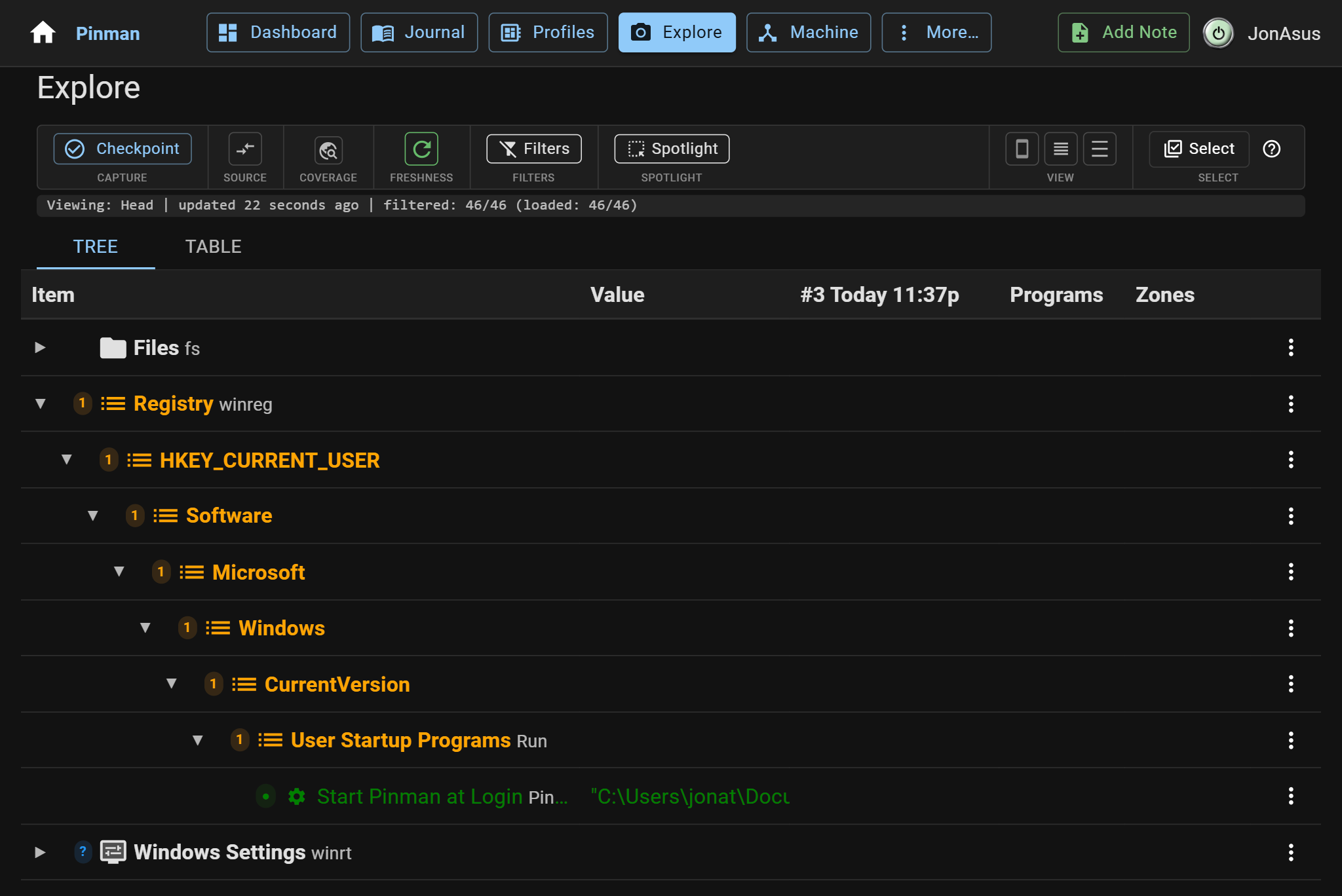
You should see a single tracked entry, Start Pinman at Login.
A few more things to point out here. The actual key is \HKEY_CURRENT_USER\Software\Microsoft\Windows\CurrentVersion\Run but this project's schema labels it User Startup Programs. Likewise the child key, Start Pinman at Login is an alias for the actual key, Pinman. This is an example of using a project schema to make internal system identifiers more accessible.
This specific key will be either present or absent depending if Pinman already starts at login. When absent, since this project tracks this key, it won't just be missing in the Explorer, it will appear styled as "absent".
Now change the setting outside Pinman, the same way you would any other day.
- Right-click the Pinman icon in the Windows system tray.
- Select Start at Login to invert it. The checkmark flips (if it was checked, uncheck it; if it was unchecked, then check it).
- Back in Explore, select Refresh.
The tracked registry value has changed, and which way it reads depends on which way you toggled. Turning the setting on writes the entry, so Pinman reports it as added (green). Turning it off deletes the entry, which reads as removed (red). Either way you are watching the same thing: Pinman comparing the live registry against your Checkpoint.
The following screenshot shows the entry added on my machine after I turned the setting on:
- Toggle Start at Login back to the way you found it.
- Select Refresh again. The registry value is back in agreement with your Checkpoint.
The runtime realm (optional)#
Registry values are stored settings. Runtime settings are live device state—there is no file to read, so Pinman asks Windows directly.
This section changes the Windows mute state. Skip it if muting or unmuting your computer could interrupt anything.
- Still in Explore, expand Windows Settings → Sound → Master.
- Note the two tracked properties, Volume and Mute.
- Toggle mute from the keyboard or the system tray.
- Select Refresh to see the new value.
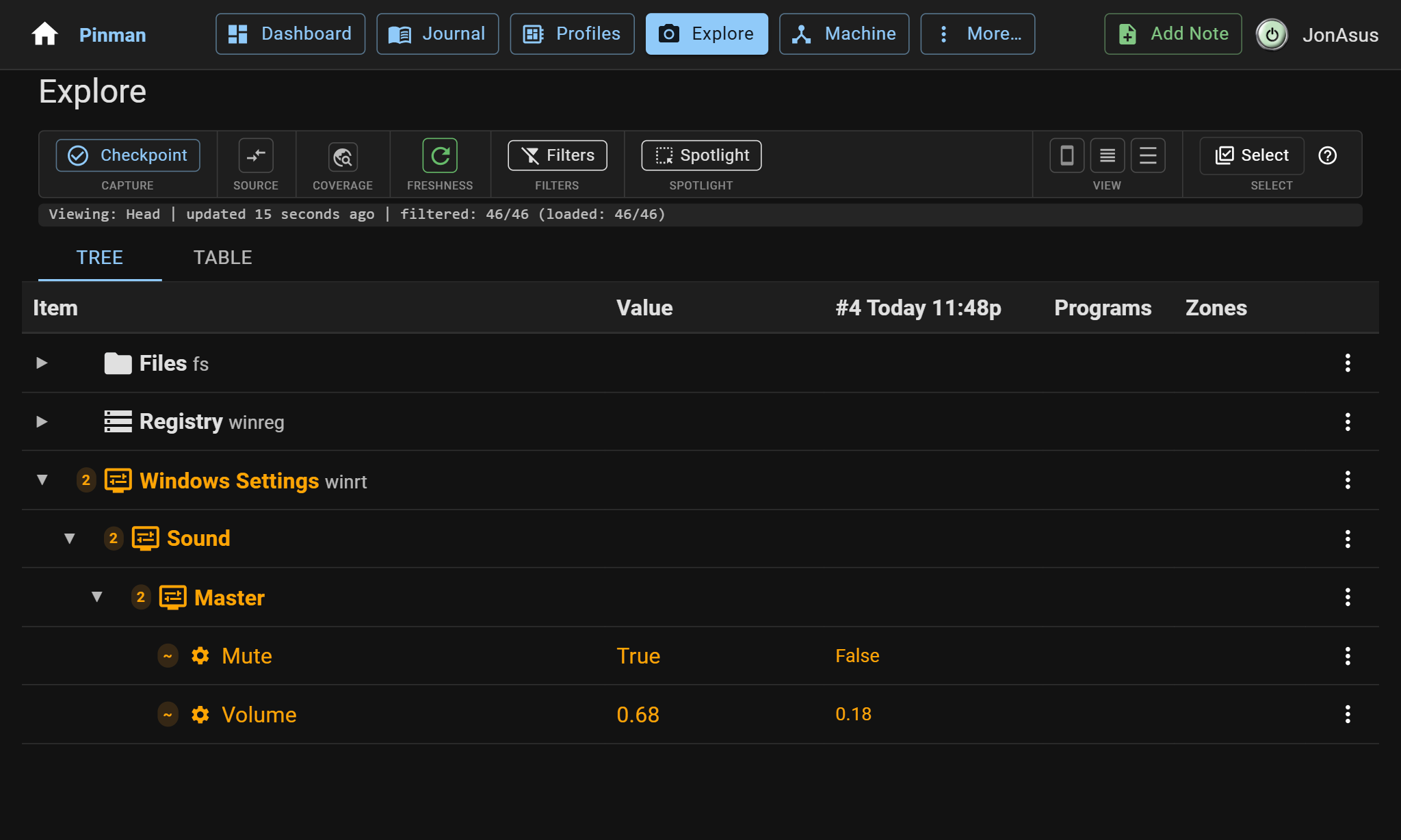
The screenshot shows how both runtime values are represented. On my system,
Volume changed from 0.18 (18%) to 0.68 (68%), while Mute changed from
False to True. You only need to change Mute for this walkthrough.
The tutorial ships two small Profiles for this: one turns mute on and the other turns it off, so you can apply either state from its Profile.
- Open Profiles and select Master Audio — Mute to open its Preview.
- Check Disable read-only for this action, select Apply, then close the Preview.
- Your PC is now muted, and the Profile reports In sync.
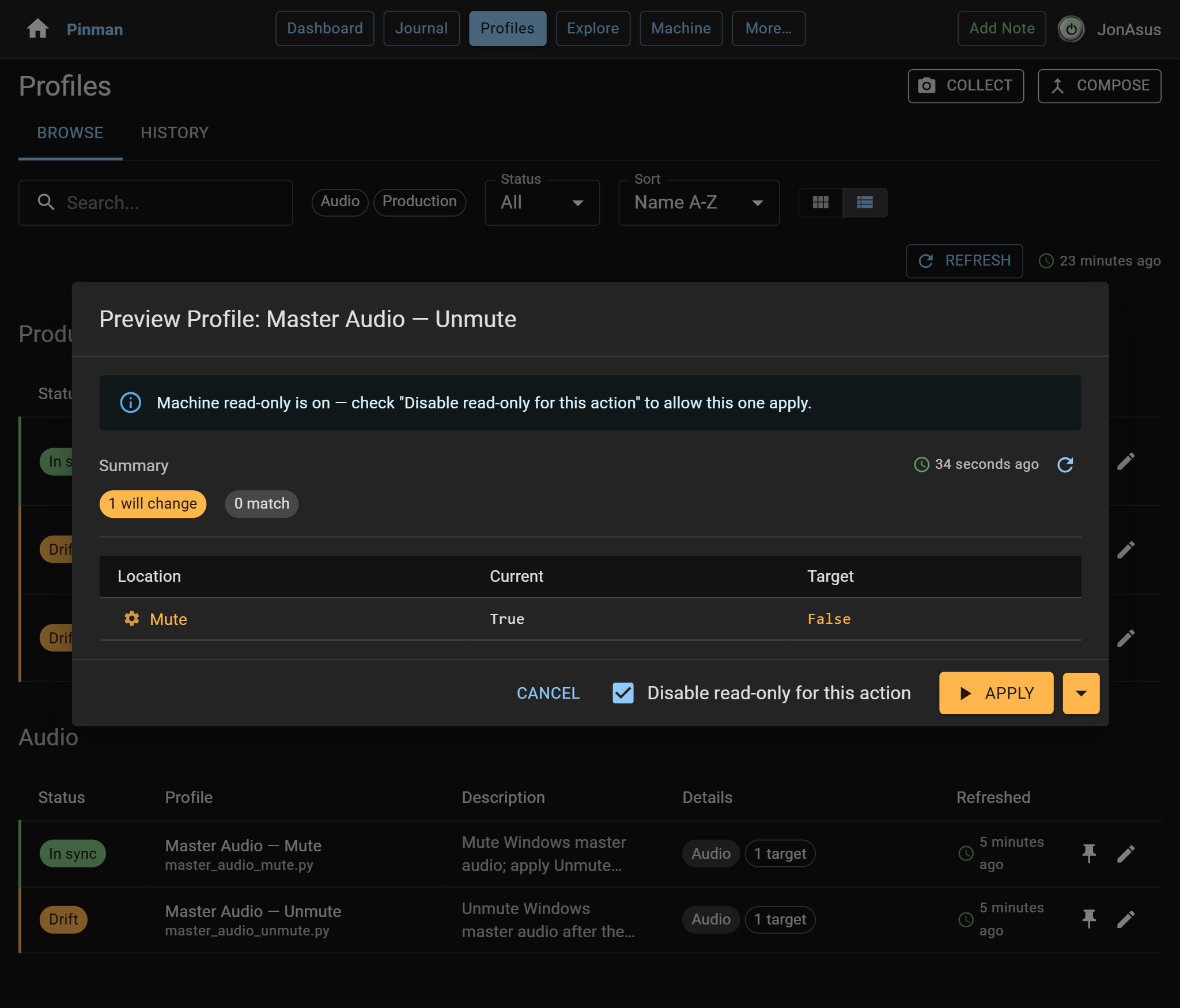
- Select Master Audio — Unmute to open its Preview.
The screenshot below shows the Master Audio — Unmute Preview before I apply the Profile.
- Check Disable read-only for this action, select Apply, then close the Preview. Your PC is now unmuted, and the Profile reports In sync.
- Toggle mute from your keyboard or system tray.
- Back in Profiles, select Refresh. Master Audio — Unmute now reports Drift because its target no longer matches the live setting.
What we did#
You followed the same loop as the rest of the tutorial—look, change, refresh, and compare—in two places that aren't files at all. You also applied a Profile to a real device setting and watched it go back out of sync when you changed it by hand.
Three realms, one model. That's what makes a Pinman Profile able to describe a whole workstation rather than one application's preferences.
You have now tracked state in files, the Registry, and live Windows settings. In the final chapter, you'll see how Pinman models the hardware, connections, and software that make up the machine itself.
Instructions#
- Open Explore, switch to the Tree view tab, and look for the root Registry row.
- It may help to collapse the root Files row.
- If Registry is not visible, reset Explore: select RETURN TO HEAD if the alert is shown.
- If any filters are active, open Filters and select CLEAR ALL FILTERS.
-
Expand the Registry row, then HKEY_CURRENT_USER → Software → Microsoft → Windows → CurrentVersion → User Startup Programs.
-
Right-click the Pinman icon in the Windows system tray.
-
Select Start at Login to invert it. The checkmark flips (if it was checked, uncheck it; if it was unchecked, then check it).
-
Back in Explore, select Refresh.
-
Toggle Start at Login back to the way you found it.
-
Select Refresh again. The registry value is back in agreement with your Checkpoint.
-
Still in Explore, expand Windows Settings → Sound → Master.
-
Note the two tracked properties, Volume and Mute.
-
Toggle mute from the keyboard or the system tray.
-
Select Refresh to see the new value.
-
Open Profiles and select Master Audio — Mute to open its Preview.
-
Check Disable read-only for this action, select Apply, then close the Preview.
-
Your PC is now muted, and the Profile reports In sync.
-
Select Master Audio — Unmute to open its Preview.
-
Check Disable read-only for this action, select Apply, then close the Preview. Your PC is now unmuted, and the Profile reports In sync.
-
Toggle mute from your keyboard or system tray.
-
Back in Profiles, select Refresh. Master Audio — Unmute now reports Drift because its target no longer matches the live setting.