
Chapters · Chapter 5 of 8
Detect settings-level changes
Inspect and refine settings-level changes across multiple applications, then capture the finished configuration in a Checkpoint.
Joining here?
Stop Pinman, run this command, then start Pinman again. It rebuilds the sample project up to this point, discarding any work you have already done in it.
pinman tutorial goto settingsWhat to expect#
Now let's simulate a common workflow: configuring and tuning the workstation to get it ready to record the final training video. Changes get made across several apps—the presentation app, the screen recorder, and the media encoder—and you'll use Pinman to inspect them. It usually takes a couple of iterations to get things right. Once you're happy, you'll capture the setup in a new Checkpoint.
Steps#
Prepare the recording settings#
-
Run the command, as if changes were made to prepare the fictional apps for recording:
pinman tutorial drift prepare
You know you're not done yet, but it's worth making a note of what you just did.
- Select Add Note in the Journal or from the main navigation.
- Turn Include capture OFF — this time we'll skip the Capture.
- Enter the title Preparing settings for final recording.
- Select Save.
Inspect the coordinated changes#
Next, let's explore what changed.
- On the Explore page, select Refresh.
Use the Explore controls to review the changes at a glance.
- Double-click the root Files row to expand the entire tree.
You can now see all the tracked items and their change state. There's a lot of them so let's add a filter.
- In the toolbar, open Filters and select Changes. Dismiss the Filters box.
- Use the view tabs below the toolbar to switch from Tree to Table view.
You should find these coordinated changes, in addition to the codec files you refreshed earlier:
| Application | Setting | After | Before |
|---|---|---|---|
| Media Encoder | Quality | delivery | preview |
| Media Encoder | BitrateMbps | 20 | 6 |
| Media Encoder | TwoPass | true | false |
| Presentation App | mode | recording | rehearsal |
| Screen Recorder | frame_rate | 60 | 30 |
| Screen Recorder | capture_cursor | false | true |
The following screenshot shows the table view with the changes-only filter applied:
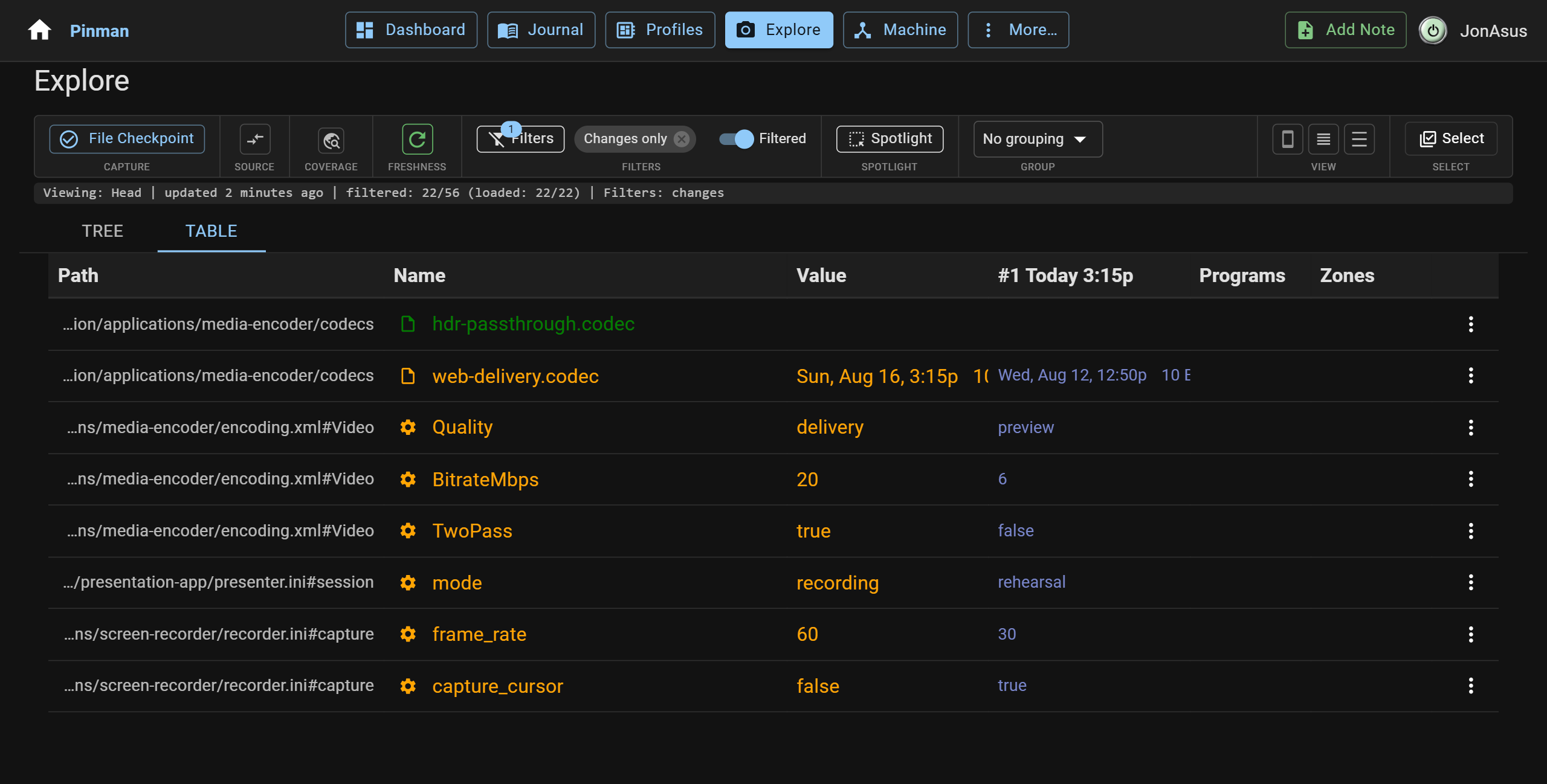
Here, After is the current value in the Head; Before is the value in the Video Editing baseline Checkpoint.
Test, then tune#
Suppose you record a test video. It looks good, but the capture drops frames and the file is larger than the team needs. Let's tune the settings and look again.
-
Run the optimization drift to make more changes outside of Pinman:
pinman tutorial drift optimize -
Return to Explore and select Refresh again.
This time the changes list gets shorter, not longer. In this last drift, the frame rate was set back to
30 and two-pass encoding back to false—the values they had in the Video
Editing baseline—so they no longer differ from it and drop off the list
entirely. Bitrate remains on the list because 12 is still not the baseline 6.
The remaining settings changes are:
| Application | Setting | After | Before |
|---|---|---|---|
| Media Encoder | Quality | delivery | preview |
| Media Encoder | BitrateMbps | 12 | 6 |
| Presentation App | mode | recording | rehearsal |
| Screen Recorder | capture_cursor | false | true |
Plus the original codec file updates from earlier. The following screenshot shows the optimized result:
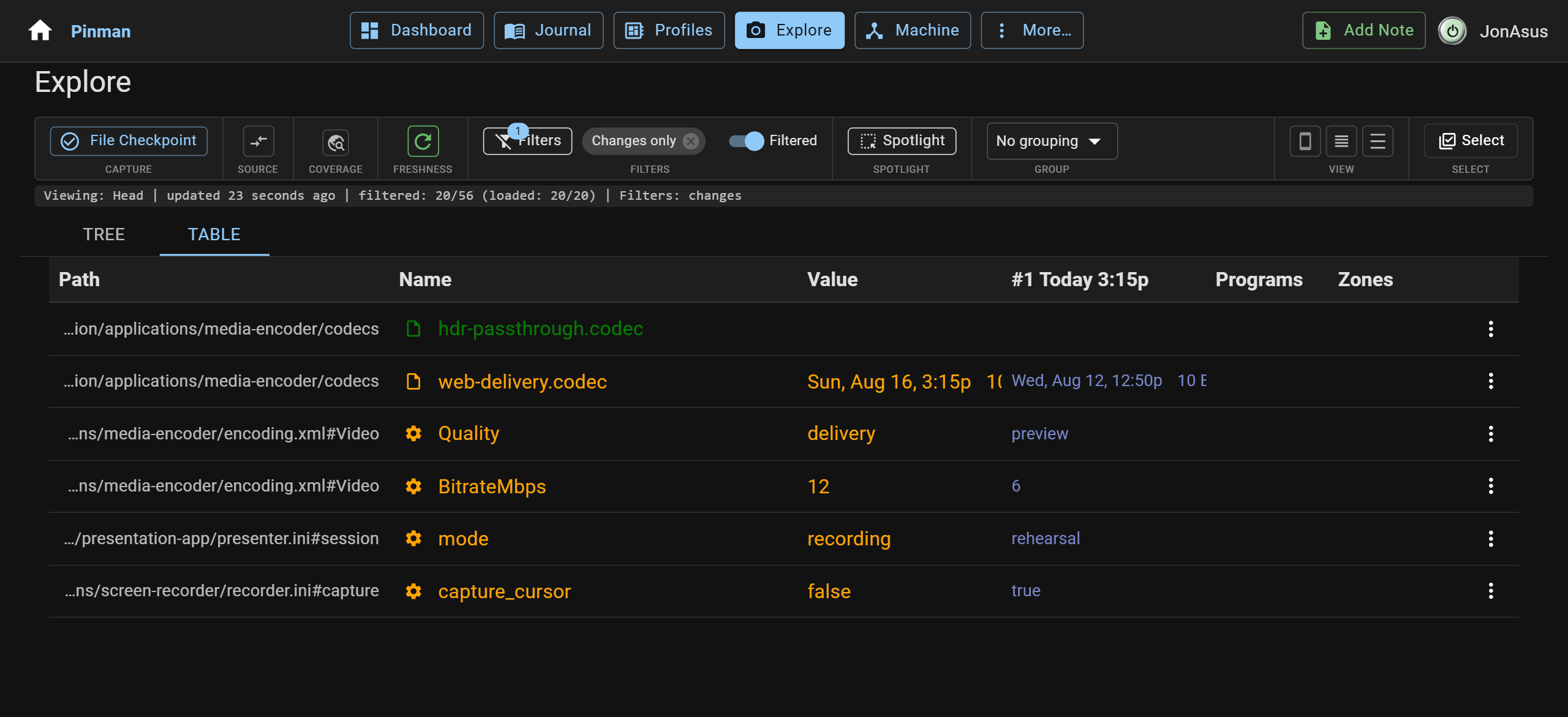
A configuration can span several applications. This fictional setup illustrates how no single setting means "Final Recording." The useful state is the combination: a recording presentation, clean cursor-free capture, and delivery-quality encoding. Pinman lets you reason about that combination as one configuration.
Pinman can also track a configuration's hardware device preferences—display resolution, device driver settings, active sound input and output devices, volume mixer settings, and so on.
Freeze the result#
This looks like a good place to add a Checkpoint.
- Go to the Journal and select Add Note (or use Add Note in the main navigation).
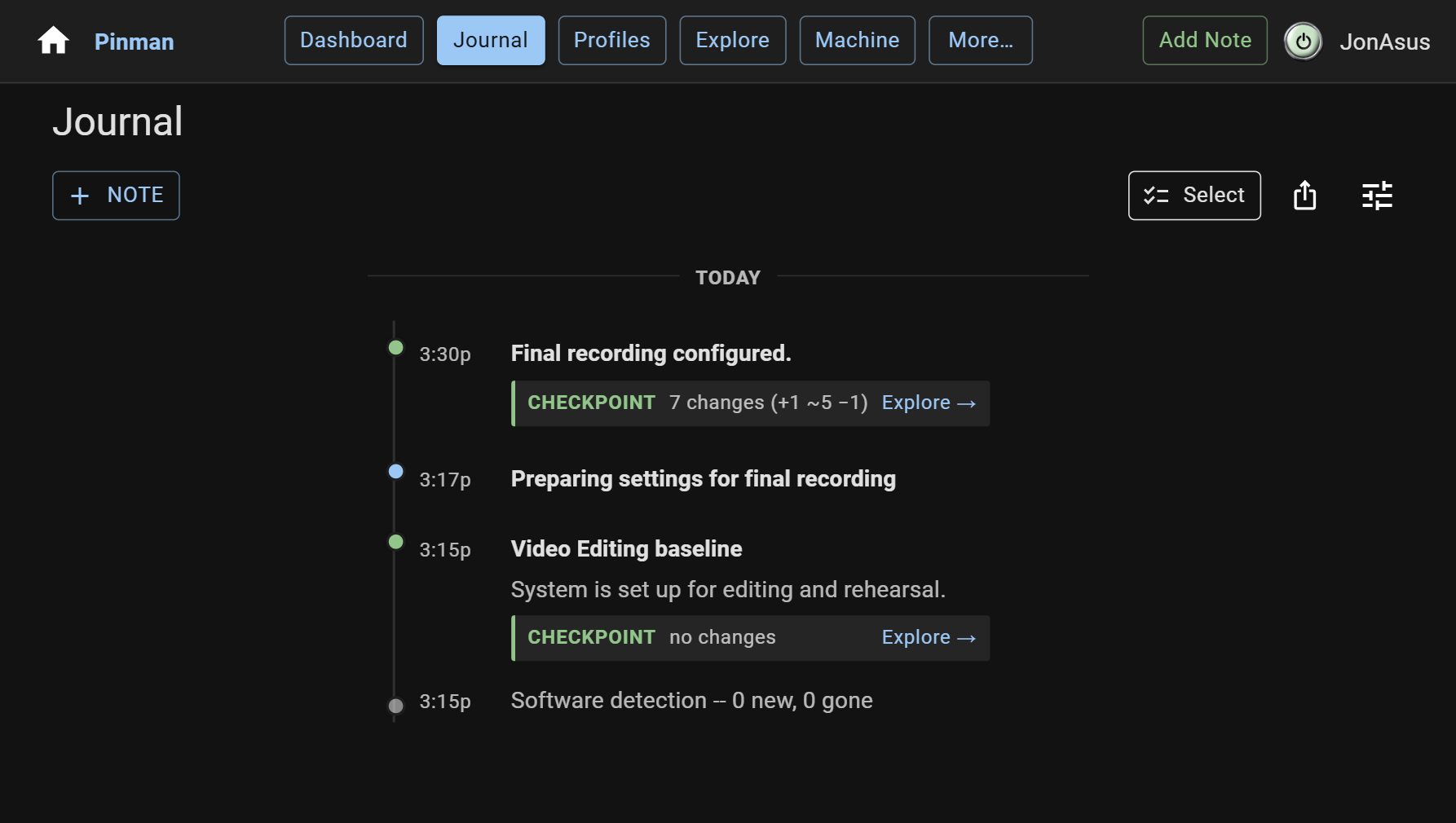
- Enter the title Final recording configured.
- Turn Include capture back ON. (IMPORTANT!)
- Select Create Checkpoint.
The tree changes shape as the Checkpoint lands: the untracked bin and cache
folders you widened the view with earlier are gone. A Checkpoint freezes what
your schema tracks, so untracked rows aren't carried into it—that's what
"temporarily" meant. The folders are still on disk; they're just not part of what
you froze.
The following screenshot shows the updated Journal with your entries so far:
What we did#
You made two rounds of outside-Pinman changes and refreshed the same Head against the same reference, so each comparison showed the net difference from the Video Editing baseline—not a log of the steps that got you there. You also used more of the toolbar and view features, including filters and Table view. Then you froze the tuned result as a new Checkpoint.
Next, let's turn these configurations into something reusable.
Instructions#
-
Run the command, as if changes were made to prepare the fictional apps for recording:
pinman tutorial drift prepare -
Select Add Note in the Journal or from the main navigation.
-
Turn Include capture OFF — this time we'll skip the Capture.
-
Enter the title Preparing settings for final recording.
-
Select Save.
-
On the Explore page, select Refresh.
-
Double-click the root Files row to expand the entire tree.
-
In the toolbar, open Filters and select Changes. Dismiss the Filters box.
-
Use the view tabs below the toolbar to switch from Tree to Table view.
-
Run the optimization drift to make more changes outside of Pinman:
pinman tutorial drift optimize -
Return to Explore and select Refresh again.
-
Go to the Journal and select Add Note (or use Add Note in the main navigation).
-
Enter the title Final recording configured.
-
Turn Include capture back ON. (IMPORTANT!)
-
Select Create Checkpoint.