

Chapters · Chapter 2 of 8
Capture workstation state in a Checkpoint
Create a Journal note with a settings-level Checkpoint that records a known-good baseline.
Joining here?
Stop Pinman, run this command, then start Pinman again. It rebuilds the sample project up to this point, discarding any work you have already done in it.
pinman tutorial goto captureWhat to expect#
Suppose you've been using your workstation for video editing and rehearsal, and it's working well. Let's record that configuration: a Checkpoint capturing the current settings, paired with a note in the Journal.
The Journal is where you log your work as you make changes to the workstation. When you write a note, you have the option to create a Checkpoint alongside it, recording the state of the system for later comparison.
Steps#
Add a note and a Checkpoint#
Open the Journal page and create a new note with a Checkpoint, as follows. For more about the Journal, see Using the Journal.
- Open Journal from the main navigation.
- Select Add Note.
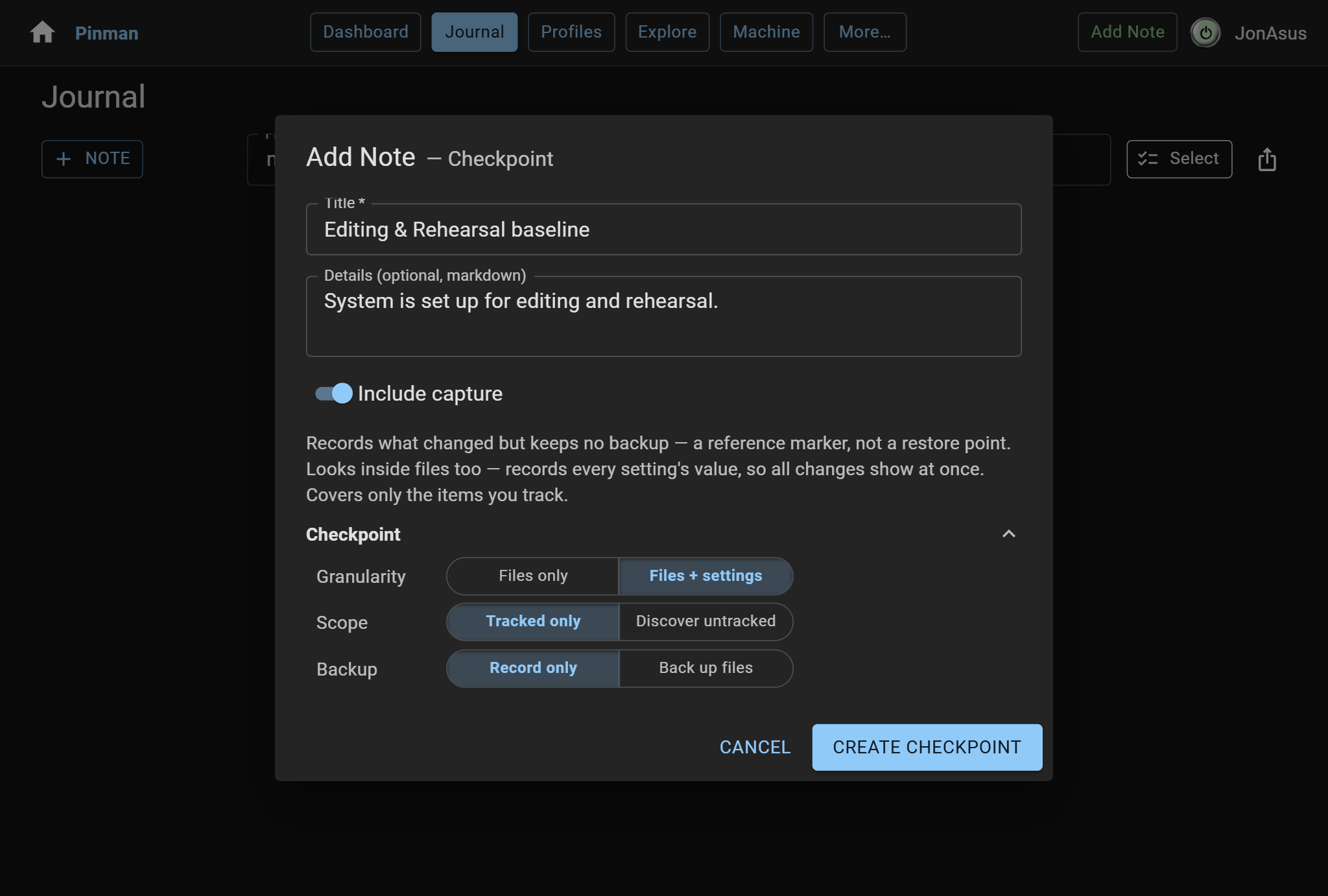
- In Title, enter Video Editing baseline.
- In Details, enter System is set up for editing and rehearsal.
- Turn on Include capture.
- Open the Capture options and choose:
- Granularity: Files + settings
- Scope: Tracked only
- Backup: Record only
These options create a Checkpoint, which records tracked files and settings without backing up file contents. That is enough detail for later property comparisons. Your configured Add Note and Checkpoint dialog should look like this:
- Confirm that the action says Create Checkpoint, then select Create Checkpoint.
- Wait for the Capture to complete. Then press Close.
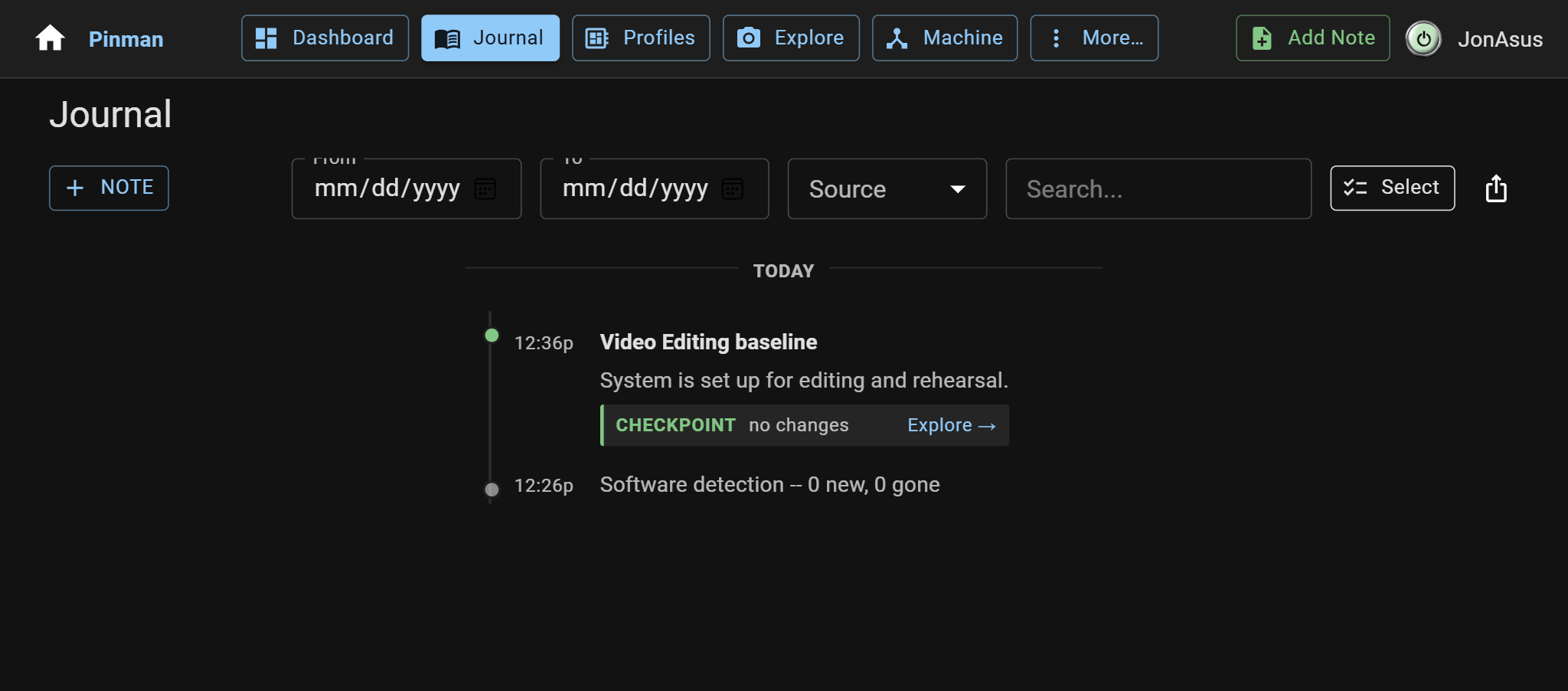
Once the Capture is complete, a new entry appears in your Journal, as shown below:
About the Pinman schema#
When you installed the basics project, Pinman seeded the database with a prescribed schema. The schema identifies the files, settings within structured files, Windows Registry values, and runtime settings worth tracking.
The fictional workstation contains many files. With the Tracked only scope, the Capture includes only items named in the project's schema. To learn more about writing a Pinman schema, see Schema Format.
How Capture options work#
Every Capture is defined by three independent choices:
| Choice | What it chooses | This tutorial |
|---|---|---|
| Granularity | Recording whole files only or also recording the individual settings inside structured files. | Files + settings |
| Scope | Schema-tracked items only or also discovering untracked items in the surrounding area. (Discovery is Pro only). | Tracked only |
| Backup | Creating a reference marker or keeping restorable file histories. (File backup is Pro only). | Record only |
These choices determine the Capture's label. Backed-up Captures are Savepoints; those without backups are Checkpoints. Files-only granularity adds the File prefix, and discovering untracked items adds the + suffix. For example, File Savepoint+ means files-only granularity, discovery scope, and file backups.
Throughout this tutorial you'll use Checkpoints with files + settings granularity, tracked-only scope, and no file backups.
For more about Captures, see Understanding Captures.
What we did#
You added a note to the Journal, along with a Checkpoint recording the current state of the system.
Now let's go explore what you captured.
Instructions#
-
Open Journal from the main navigation.
-
Select Add Note.
-
In Title, enter Video Editing baseline.
-
In Details, enter System is set up for editing and rehearsal.
-
Turn on Include capture.
-
Open the Capture options and choose:
- Granularity: Files + settings
- Scope: Tracked only
- Backup: Record only
-
Confirm that the action says Create Checkpoint, then select Create Checkpoint.
-
Wait for the Capture to complete. Then press Close.