
Technician Mode
Captures
The Captures page creates and manages the Checkpoints and Savepoints kept for this Machine. It also shows whether the Machine is ready for another Capture.
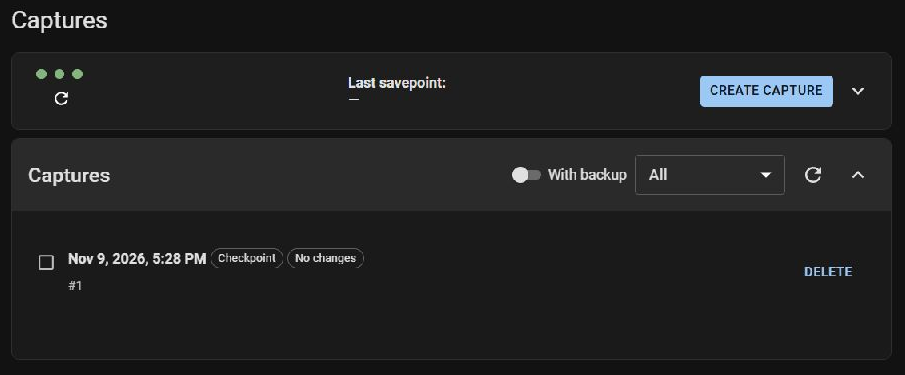
The page has two collapsible sections:
- Capture status — readiness, current changes, and Create Capture.
- Captures — history, filters, selection, and actions for saved Captures.
For the concepts behind these controls, see Understanding Captures.
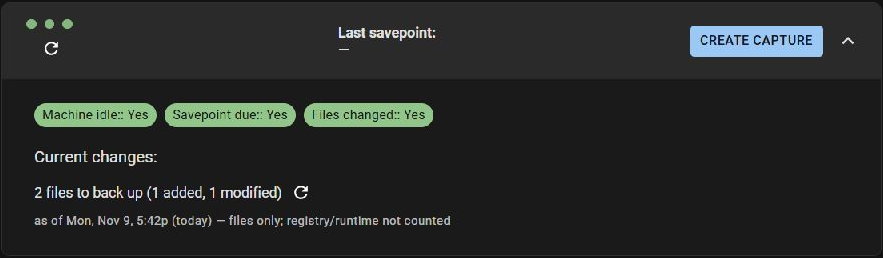
Capture status#
Expand the first section to see the checks behind the three status dots.
Create Capture#
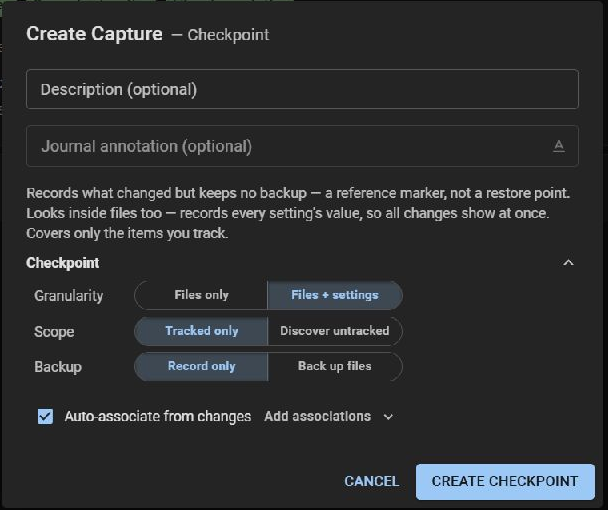
Create Capture combines the three choices that determine what Pinman reads and keeps. The button at the bottom names the resulting Capture kind.
The same options open from Create Capture on this page, Capture in Explore, and Include capture when adding a note from the Journal or the main +Note button. The note version adds the Journal fields around the same Granularity, Scope, and Backup choices.
Progress#
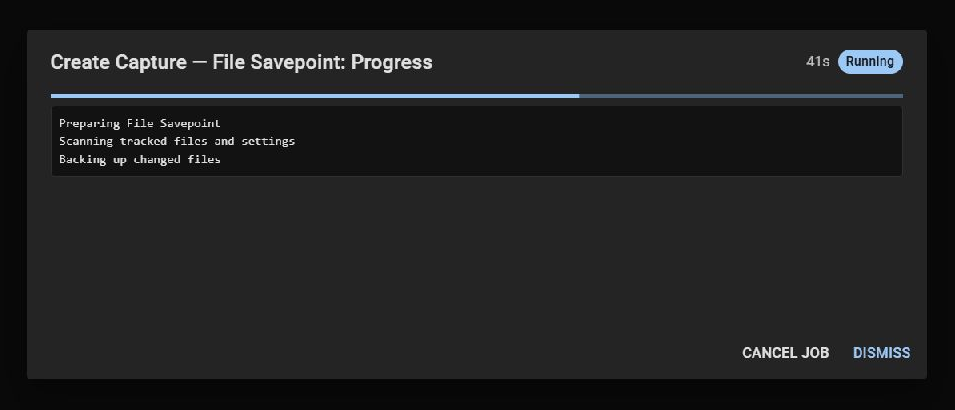
After a Capture is started from any of the entry points above, the progress dialog shows its status, elapsed time, log, and whether the job can be cancelled. Captures-page actions such as Verify and Restore use the same job progress display.
Capture history#
Expand Captures to work with frozen Captures. With backup limits the list to Savepoints; the status filter shows all, completed, or incomplete jobs.
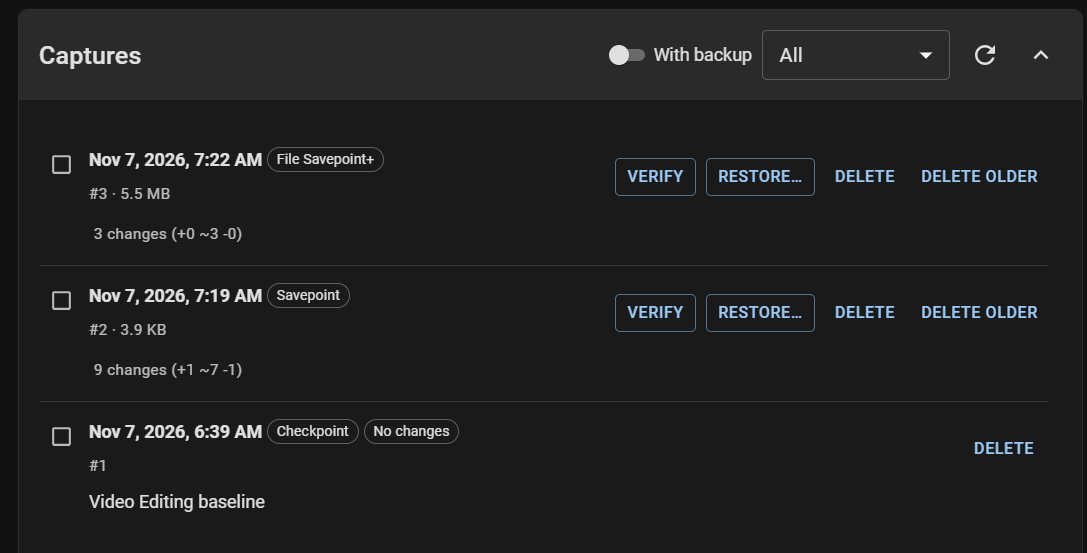
Each row shows the creation time, kind, status, Capture number, storage details, description, and recorded change count. Checkboxes open selection controls for deleting several Captures together.
Row actions#
Restore#
Restore first previews how many Items would change. Files are included; select Registry or Windows settings when those realms should be restored too.
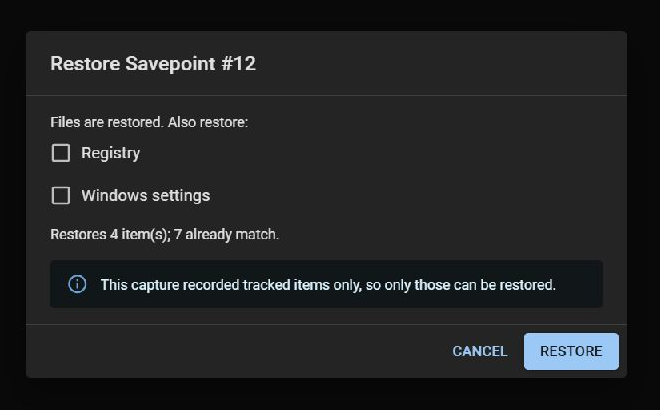
The dialog also reports limits that follow from the Capture's coverage. Restore respects Machine read-only mode and asks before replacing state without a current Savepoint where that protection is required.
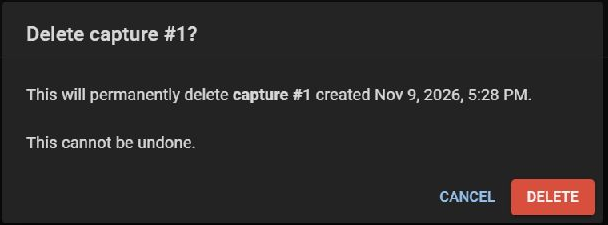
Delete confirmations#
Delete and Delete Older name the affected Capture or range before anything is removed. Check the range, then confirm the operation.