

Start here
Connect to a machine
Connections is where you find Pinman machines on your network and connect to them.
Find a machine#
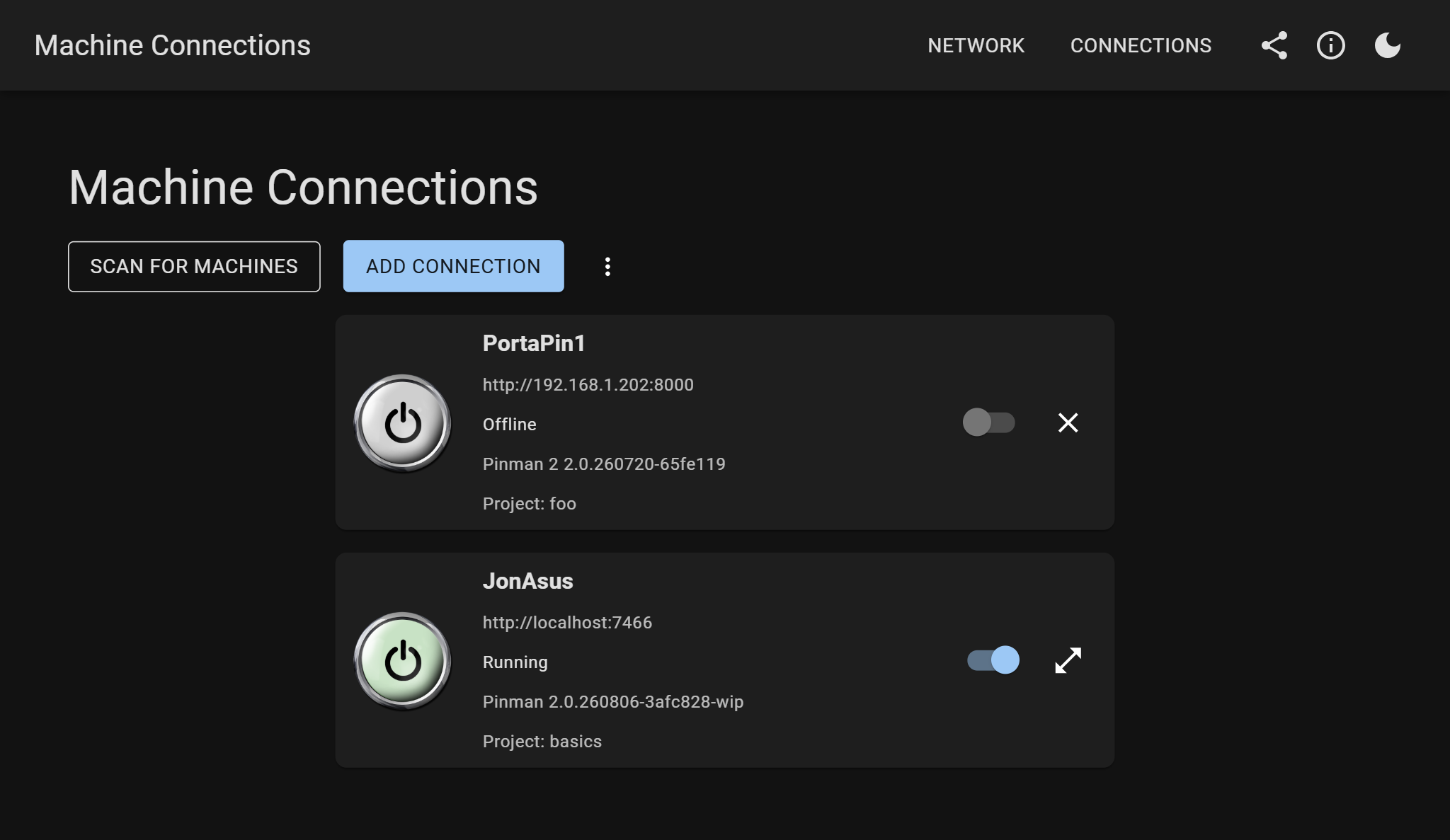
Select Scan for Machines. Pinman looks for servers that have advertised themselves on your local network and adds them to the list.
Each machine shows its name, address, current status, Pinman version, and project. The controls let you connect, open, or forget the machine.
If a machine does not appear in a scan, select Add Connection and enter its IP address or network name.
Need the IP address? On the machine running Pinman, open the tray menu and select Connect a Phone. The IP address appears below the QR code.
Connect#
Select the connection control on the machine's card, then choose a role:
- Operator gives you remote controls and presets for volume, brightness, and messages.
- Technician gives you configuration and drift-management tools for the machine's system state.
Enter the PIN for that role and select Connect. Pinman does not ask for a user ID.
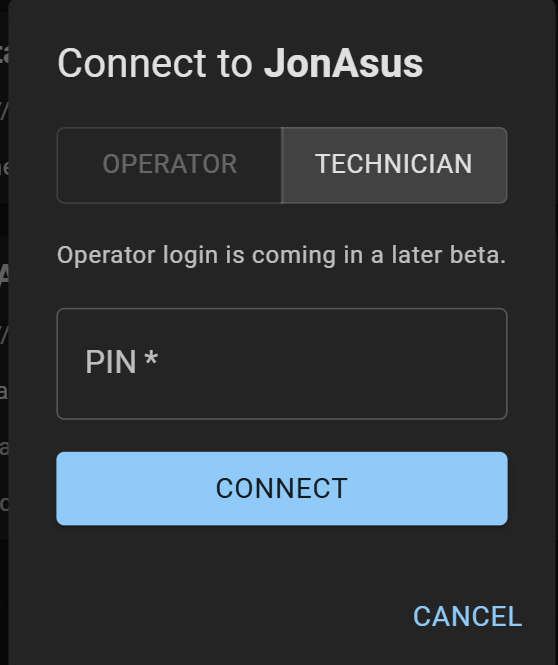
Once connected, select the open icon to enter the machine. Use the same connection control to disconnect. This does not stop Pinman or power off the machine.
Remove a connection#
Disconnect first, then select X to forget a machine. This only removes the connection from the list—the machine itself is unaffected. To clear the whole list, open the More menu and select Remove All Connections.