

Understanding Pinman
How Pinman works
Pinman gives you one place to understand and manage the configuration of a Windows machine. Windows spreads that configuration across files, the Registry, system settings, devices, services, and software-specific tools. Pinman brings the parts you care about into one model.
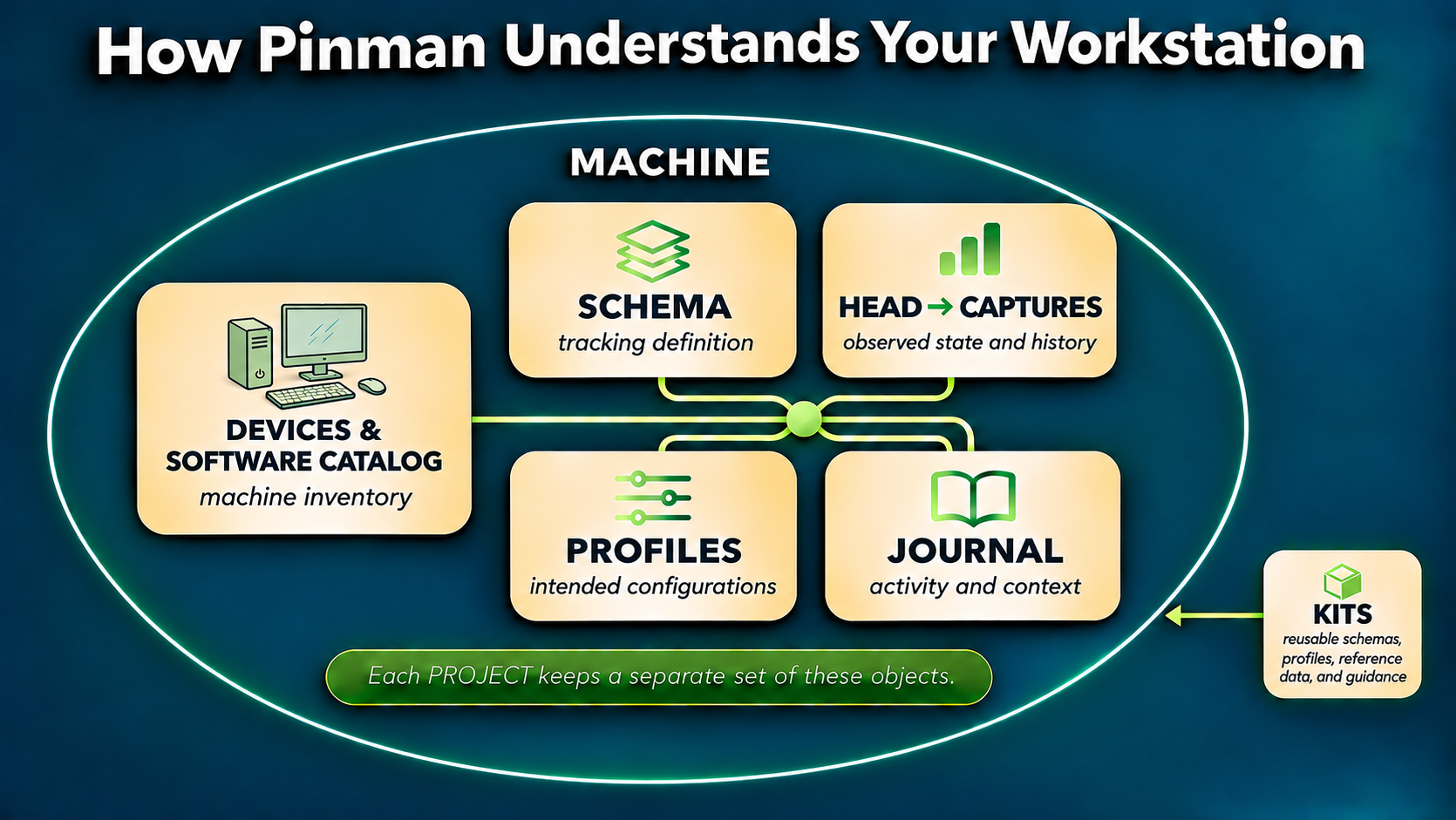
That model connects five basic ideas:
- A Schema defines what Pinman tracks.
- The Head and Captures record what Pinman observes.
- Profiles describe configurations you want to use.
- The Journal records what happened along the way.
- Devices and the Software Catalog describe the machine inventory.
The big picture#
Machine and Project#
Pinman calls each Windows computer it manages a Machine. The files, Registry values, Windows settings, devices, and services Pinman reads all belong to that Machine.
Your work on the Machine is organized in a Project. Each Project has its own Schema, Captures, Profiles, Journal, device model, Software Catalog, and related data. A Machine can have several Projects, but only one is active at a time. Switching Projects changes what you see and work with in Pinman; it does not switch to another computer.
Separate projects are useful when you want a tutorial or experiment kept apart from the machine's ordinary configuration history.
Schema#
Before Pinman can track configuration, it needs a definition of what matters. The Schema provides that definition. Its tree of schema items can identify exact locations or use controlled patterns for groups of similar configuration. One Schema can bring together:
fs:— directories, files, and individual settings inside supported file formats;winreg:— Windows Registry keys and values; andwinrt:— Windows runtime settings: display, audio, device, and other system settings.
The Schema defines scope; it does not contain observed values. Editing it changes what Pinman tracks without reading or changing the machine. The Head and Captures hold the state Pinman observes when it reads that configuration.
Head and Captures#
As Pinman reads configuration, it builds a working record called the Head. When you want to preserve the recorded state at a point in time, you create a Capture. The Head and each Capture are organized as trees.
Each observed directory, file, setting inside a file, Registry value, or Windows property is an Item in those trees. Together, the Items provide a normalized view of configuration data Pinman reads from Windows, software, and other sources. This gives users, automation, and agents one consistent control plane for tracked system state.
The Head does not update continuously. When you Refresh all or part of it, Pinman reads the corresponding configuration from the machine and updates those Items. Pinman also updates affected Items after changes it makes.
Thus, different Items can have different observation times. The UI shows the age of the Head and individual Items, so you can recognize potentially stale values and Refresh them when needed.
A Capture includes the values recorded for tracked settings. Pinman compares those records with the Head or other Captures so you can observe changes. And you can restore supported values from them.
Every Capture is either a Checkpoint or a Savepoint:
- A Checkpoint saves the Item records without copying complete files.
- A Savepoint saves the same Item records and also backs up complete copies of applicable files.
A Capture is a focused configuration record, not an image of the entire computer. The additional file backups in a Savepoint support whole-file restore. They can also be inspected later for settings Pinman was not tracking when the Savepoint was created.
Profiles#
To describe a configuration you want to use, create a Profile. It can target a few values or coordinate settings across files, Registry values, and Windows settings.
Profiles can accept parameters or run a sequence of steps. In fact, a Profile is a Python script run by Pinman that advanced users can write and edit directly.
Pinman can check whether current values match a Profile and preview what would change. When you choose Apply, Pinman writes the Profile's supported settings to the machine. It also records their previous values; where those values can be written back, you can Undo the Apply.
To inspect without making changes, turn on read-only mode. You can still check Profiles and preview changes, but Pinman will not write them.
Compare and drift#
Capture comparisons and Profile drift use different reference points.
Use a Capture comparison to ask: What changed since an earlier point in time? Most comparisons use the Head and an earlier Capture, but you can also compare two Captures. Comparing recorded state does not Refresh the Head or read the machine again.
Use a drift check to ask: Does the Head match this Profile? The Profile's targets—not an older Capture—define the expected values. Capture comparison describes change over time; drift checks the current record against the configuration you intend to use. In practical terms, drift identifies the current values that would need to change to bring the Head into sync with the Profile. Preview the Profile to see the full Apply plan.
Journal#
Pinman's Journal connects its technical records with a timeline. Pinman adds entries for important activity such as Captures and Profile applies, and you can add notes, for example, explaining what you were working on when you ran the Capture.
Journal entries can point back to the relevant Capture or apply. This connects configuration evidence with the human story behind it: an upgrade, a troubleshooting session, a deliberate settings change, or an unexpected problem.
Machine inventory#
Pinman's machine inventory brings together its hardware model and Software Catalog. These give tracked configuration stable context beyond the file paths, Registry keys, and Windows settings where individual values happen to live.
Boxes, Devices, and roles#
Configuration often depends on the hardware connected to the machine. When you detect Devices, Pinman inventories displays, audio endpoints, USB devices, and other hardware. For each Device, it records the identifiers and properties reported by Windows and whether the hardware is currently present. Pinman can then check that hardware and associate it with Boxes and roles.
Pinman uses a Box to represent a physical machine and the Devices assigned to it. A Box can contain other Boxes when the hardware has distinct physical sections.
You can assign a role to a Device, which identifies what that Device does, such as “presentation display” or “main speakers.” A Profile can refer to the role instead of a Windows device identifier. If you replace a Device and assign the replacement the same role, the Profile can use the new hardware without being rewritten.
Software Catalog#
The Software Catalog gives known applications, drivers, utilities, services, runtimes, and Windows tools stable identities. Pinman can associate tracked Items with the software that owns or uses them even when those settings are spread across files, the Registry, and Windows APIs.
Each catalog entry describes what the software is and how Pinman can work with it. A detection scan adds machine-specific state, such as whether the software was found, its version, and its installation path. Detection checks known catalog entries; it is not a general inventory of every program installed on the computer.
The catalog provides context around configuration. It does not install software, contain its settings, or determine what Pinman tracks—the Schema still does that.
Learn how the Software Catalog works →
Kits#
You do not need to create every Schema, Software Catalog entry, and Profile yourself. A Kit packages Pinman content for a particular kind of machine, software, or workflow. It can include a Schema and Software Catalog definitions, Profiles, reference data, and documentation, all released together under one version. Advanced users can develop Pinman Kits and share them within their organization or with the community at large.
You install a Kit to add that content to Pinman's Kit library. You can then import the Kit into a project instead of building its Schema and Profiles from scratch. Projects that use the same Kit still keep their own Captures and history.
A typical Pinman workflow#
A typical workflow for recording a known configuration, finding later changes, and returning the machine to an intended setup looks like this:
- Start a project and choose or build its Schema, possibly using a Kit.
- Take a Checkpoint or Savepoint to establish a useful reference.
- Let work, updates, or troubleshooting change the machine.
- Refresh the Head and compare it with the reference.
- Create Profiles for configurations you want to reuse, then check, preview, or apply them.
- Use Captures, Profile drift, apply history, and Journal notes to understand or reverse changes.
The Basics tutorial walks you through this workflow in a safe, disposable project.
You do not need every feature for Pinman to be useful. You might begin by tracking a few settings and comparing Captures, then add Profiles, hardware roles, or Kits as your needs grow.
Continue exploring#
- Understanding captures
- What Pinman will and won't change
- Is Pinman a backup solution?
- Installing Kits
- Schema format
- Profile Scripts