

Chapters · Chapter 2 of 7
See inside configuration files
Track individual settings inside configuration files, not just the files.
Joining here?
Stop Pinman, run this command, then start Pinman again. It rebuilds the sample project up to this point, discarding any work you have already done in it.
pinman tutorial goto settingsWhat to expect#
Pinman can look inside supported data files and track the settings that matter. In this chapter, you'll track two configuration files, choosing INI data file for each, then select three settings to track. At the end, Explore will show each setting and its current value, ready for the changes later in the tutorial.
Schema authoring workflow
- Choose what mattersfirst tracked file
- Describe configurationsettings + labels
- Keep noise outMatching Rules
- Prove the schemacompare with baseline
- Extend beyond filesRegistry + Windows
Steps#
Track the presentation data file#
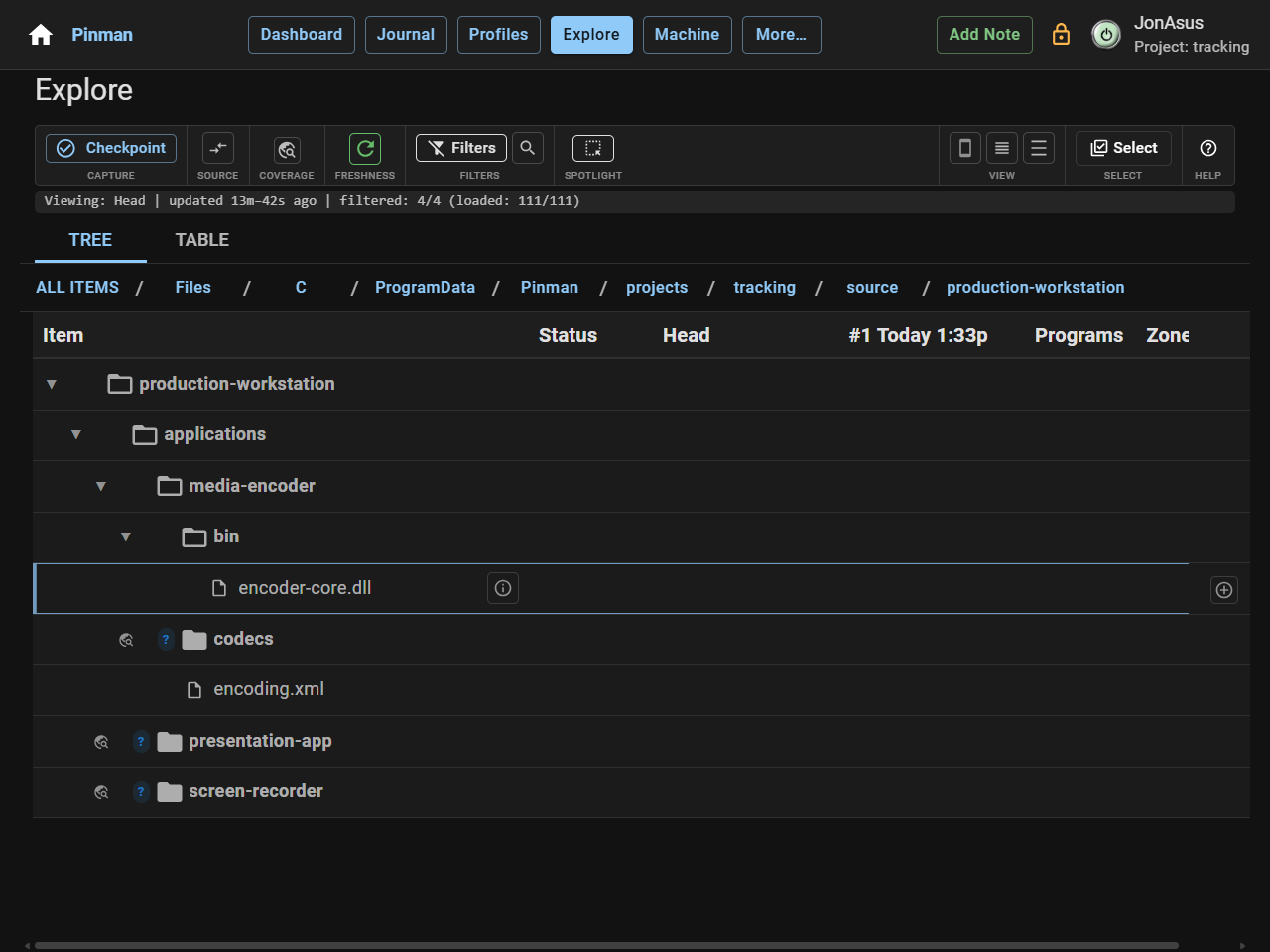
You're already in Explore. Start with the presentation application's
configuration file, presenter.ini. Tracking presenter.ini with Track as
set to INI data file lets Pinman show its named sections and settings.
- On the Production Workstation row, press the globe-icon to scan for untracked.
- Likewise, scan and drill down through
applications, thenpresentation-app, to revealpresenter.ini. - Right-click
presenter.iniand select Track item…. - Under Track as, ensure INI data file is selected.
- Select Track.
The schema now tracks presenter.ini as an INI data file. Let's look inside it.
- Scan
presenter.inito see it's contents: sections namedsessionand 'playback`. - Scan the
sessionsection to see its settings.
Explore now shows the file's sections and settings. The settings are visible but not yet tracked.
Track the presentation mode#
session/mode is one of the settings used later in the tutorial. It records how
the presentation application runs; its current value is rehearsal.
- Right-click
session/modeand select Track item….
The dialog shows the setting's location, ending in #session/mode. Data Type
tells Pinman what kind of value the setting holds. The mode is text, so its Data
Type is string. Other available types include int, float and bool.
Default Value can stay empty. It supplies a value when the setting is missing.
- Set Data Type to
string, then select Track.
session/mode is now tracked.
Track the recorder settings#
The screen recorder also uses an INI file, so you can repeat the sequence more
quickly. A frame rate is a whole number, so its Data Type is int. Cursor capture
is either true or false, so its Data Type is bool.
- Under
applications, scanscreen-recorderto revealrecorder.ini. - Track
recorder.ini, choosing INI data file under Track as. - Scan
recorder.ini, then scan itscapturesection. - Track
capture/frame_ratewith Data Typeint. - Track
capture/capture_cursorwith Data Typebool. - Select Refresh from the Explore toolbar to refresh the whole tree.
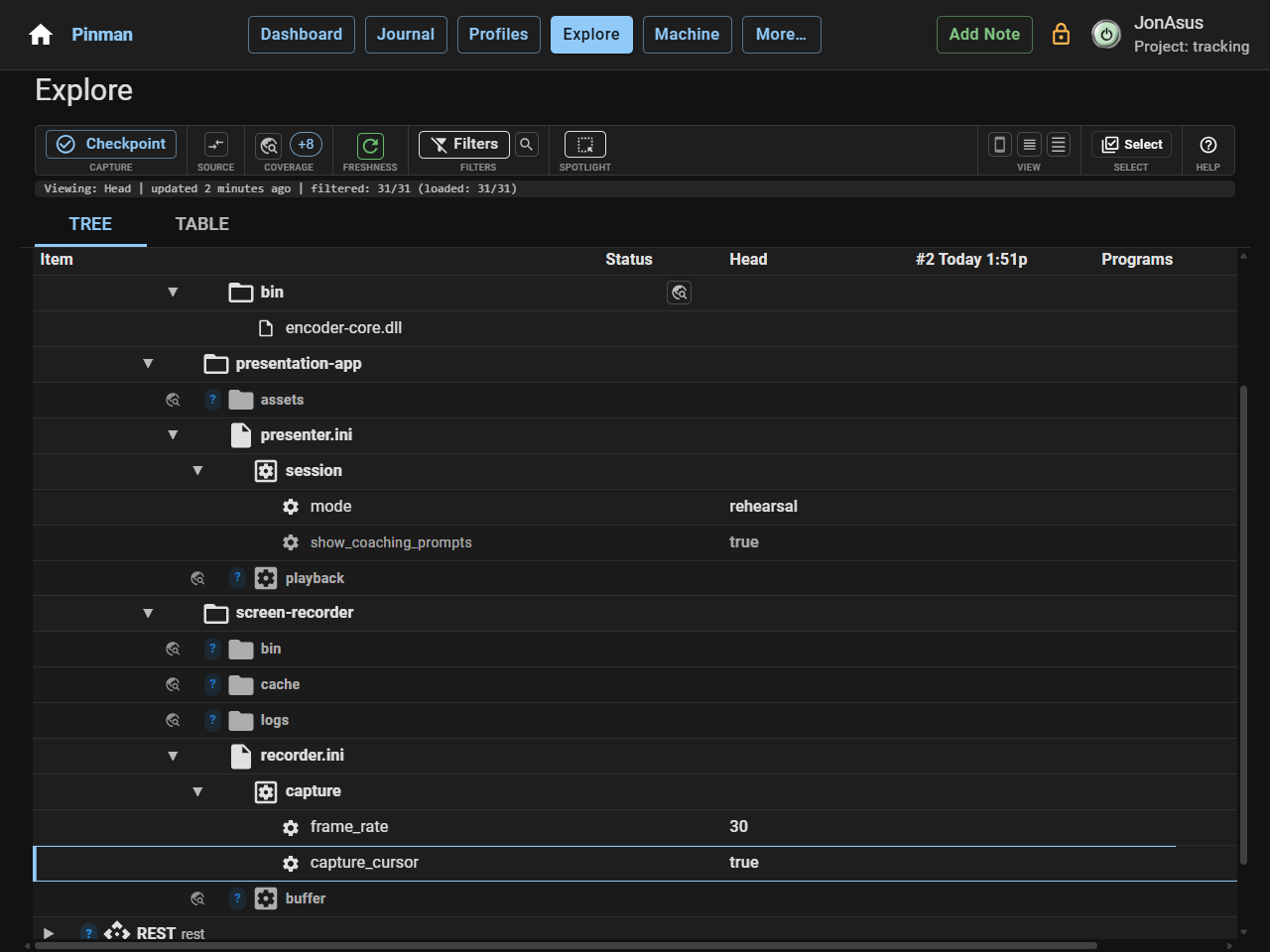
With the whole tree refreshed, you are now exploring Head, the live Capture of the current machine state. Head shows the three tracked settings and their current values:
| Application | Setting | Data Type | Current value |
|---|---|---|---|
| Presentation | session/mode | string | rehearsal |
| Screen recorder | capture/frame_rate | int | 30 |
| Screen recorder | capture/capture_cursor | bool | true |
The two files contain other settings, but the tutorial does not need them. A useful schema is selective: it describes the configuration you want to understand and manage.
What we did#
You tracked two configuration files, choosing INI data file for each, then selected three settings and assigned each setting a Data Type. Pinman can now show which presentation or recording value changed instead of reporting only that a file changed.
Next, you'll bring the media encoder's settings into the same configuration view.
Instructions#
-
On the Production Workstation row, press the globe-icon to scan for untracked.
-
Likewise, scan and drill down through
applications, thenpresentation-app, to revealpresenter.ini. -
Right-click
presenter.iniand select Track item…. -
Under Track as, ensure INI data file is selected.
-
Select Track.
-
Scan
presenter.inito see it's contents: sections namedsessionand 'playback`. -
Scan the
sessionsection to see its settings. -
Right-click
session/modeand select Track item…. -
Set Data Type to
string, then select Track. -
Under
applications, scanscreen-recorderto revealrecorder.ini. -
Track
recorder.ini, choosing INI data file under Track as. -
Scan
recorder.ini, then scan itscapturesection. -
Track
capture/frame_ratewith Data Typeint. -
Track
capture/capture_cursorwith Data Typebool. -
Select Refresh from the Explore toolbar to refresh the whole tree.