

Chapters · Chapter 4 of 7
Keep noise out
Keep high-churn files out so a Capture shows only the configuration you chose.
Joining here?
Stop Pinman, run this command, then start Pinman again. It rebuilds the sample project up to this point, discarding any work you have already done in it.
pinman tutorial goto noiseWhat to expect#
Matching Rules let Pinman track a changing collection of useful files while leaving logs, caches and other noise out of the schema. In this chapter, you'll track active codec files by name pattern and track the screen recorder folder without its log and cache. Then you'll capture a clean baseline for the changes in the next chapter.
Schema authoring workflow
- Choose what mattersfirst tracked file
- Describe configurationsettings + labels
- Keep noise outMatching Rules
- Prove the schemacompare with baseline
- Extend beyond filesRegistry + Windows
Steps#
Track a collection with Matching Rules#
The media encoder loads codec files from its codecs folder. Codec files may
come and go, so tracking them by rule is more useful than choosing each file by
name. The available subfolder contains codecs that are installed but not
active, so that folder will stay out.
- In Explore, find
applications/media-encoder/codecs, scanningmedia-encoderif needed. - Right-click
codecsand select Track item….
For a folder, What to track controls whether Pinman automatically tracks its
files and subfolders. Matching Rules then decide which names are included or
excluded. An include rule wins over an exclude rule, so you can exclude
everything first and then include only *.codec files.
- Turn on Also track other files and subfolders automatically.
- Under Matching Rules, select the pencil icon, Edit matching rules.
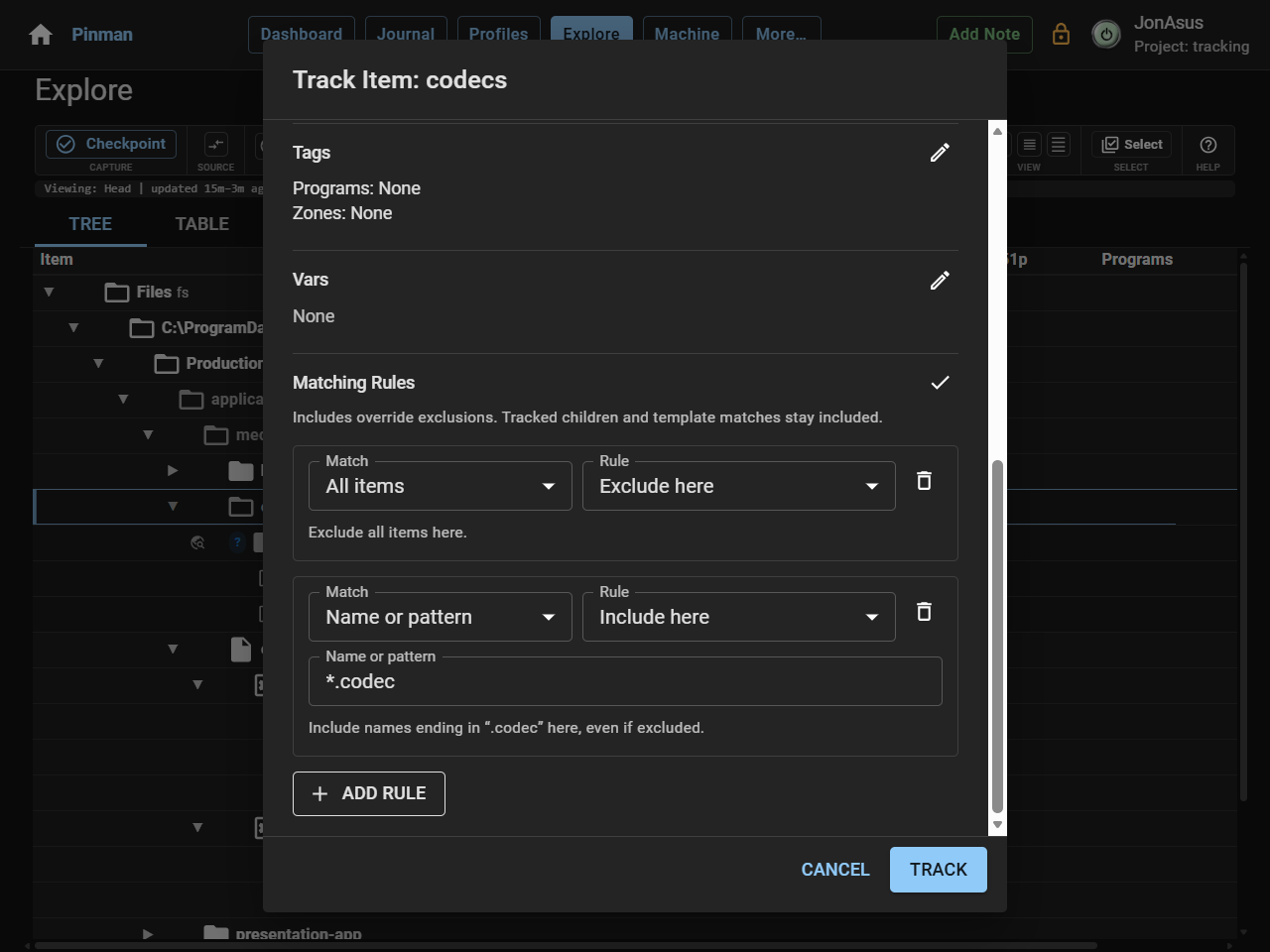
- Select Add rule, set Match to All items, and leave Rule as Exclude here.
- Select Add rule again, set Rule to Include here, and enter
*.codecin Name or pattern.
The descriptions beneath the rules should read:
- Exclude all items here.
- Include names ending in “.codec” here, even if excluded.
- Select Track.
- Select Refresh to apply from the Explore toolbar.
- Click to expand the
codecsrow to see its contents.
web-delivery.codec and legacy-mpeg2.codec now appear as tracked files even
though you did not track either file by name. The available folder stays out,
along with anything in codecs that does not match *.codec.

Track an application without its noise#
The screen-recorder folder contains recorder.ini, a helper program, a cache
and a log. The cache and log change often but do not describe how the recorder is
configured. Track the folder automatically, then exclude those two folders.
- Right-click
screen-recorderand select Edit tracking….
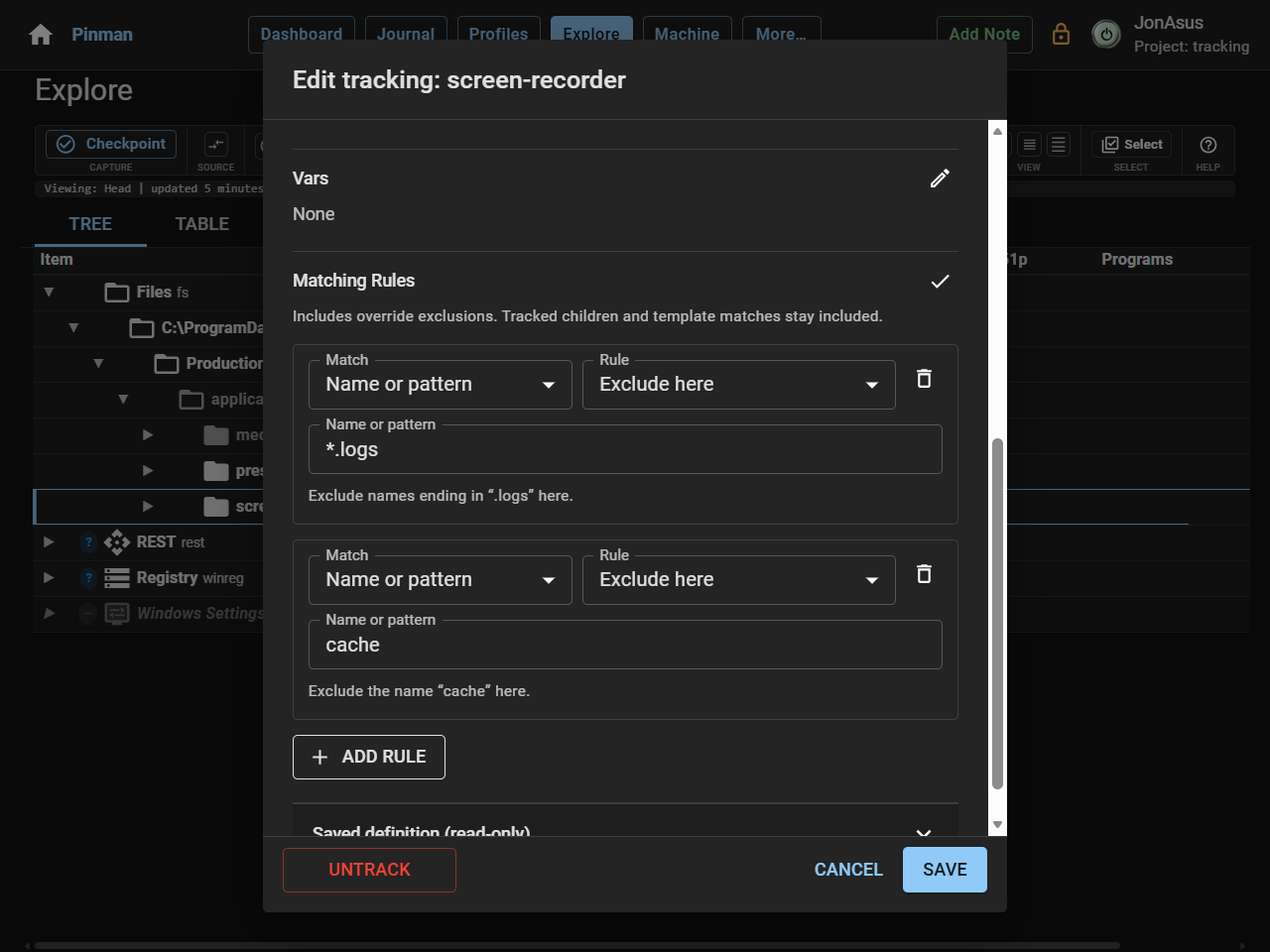
screen-recorder is already part of the schema because it contains the tracked
recorder.ini file. Its current Matching Rules contain Exclude all items
here, which keeps the folder structural. Replace that rule with exclusions for
only logs and cache.
- Turn on Also track other files and subfolders automatically.
- Select Edit matching rules, then remove the existing All items rule.
- Add an Exclude here rule for
logs, and another forcache. - Select Save.
- Select Refresh to apply from the Explore toolbar.
- Under
screen-recorder, scanbinto reveal its contents. - Expand
binto see its tracked contents.
recorder.ini keeps its INI definition and tracked settings because an explicit
definition takes precedence over automatic tracking. The helper program,
bin/recorder-helper.exe, is now tracked as Whole file. The logs and
cache folders stay out.
Capture the useful scope#
The schema now covers the configuration needed for the next exercise. Create a Checkpoint to use as its baseline. Files + settings includes the individual values you selected, while Tracked only keeps the excluded and untracked files out.
- On the Explore toolbar, select Checkpoint.
- In Title, enter Tracked workstation baseline.
- Check that the options are Files + settings, Tracked only and Record only.
- Select Create Checkpoint and wait for it to complete.
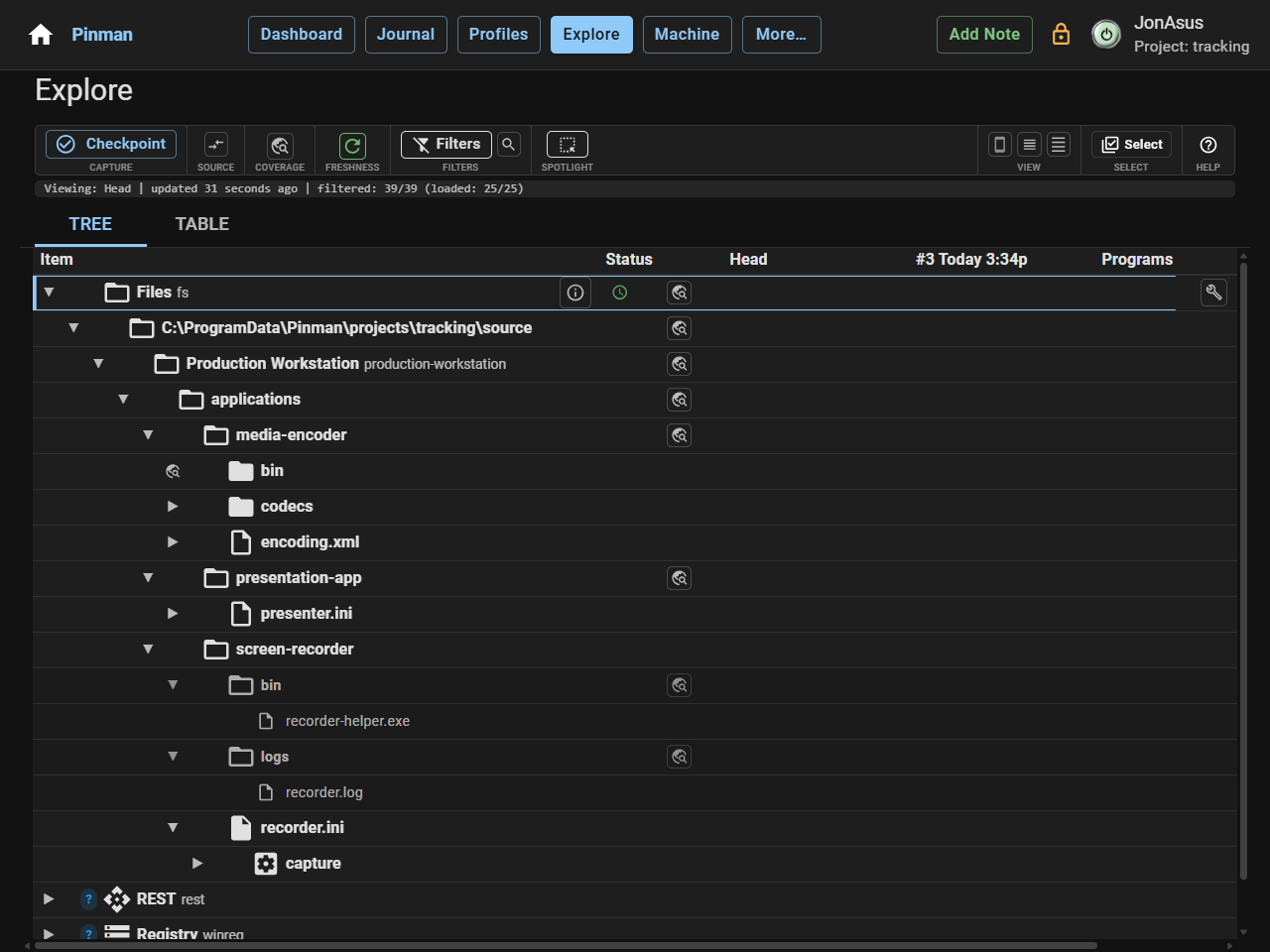
The Checkpoint contains encoder-core.dll, the two active codec files, the
recorder helper program and the eight required application settings. If you
completed the optional INI practice, those settings are included too. The log,
cache and available HDR codec are absent.
What we did#
You used Matching Rules to track two changing folders without selecting every
file. The codec folder includes *.codec files, while the screen recorder folder
excludes its log and cache. Tracked workstation baseline now captures the
useful configuration without the noise.
Next, you'll change the fictional workstation and see whether the schema explains what happened.
Instructions#
-
In Explore, find
applications/media-encoder/codecs, scanningmedia-encoderif needed. -
Right-click
codecsand select Track item…. -
Turn on Also track other files and subfolders automatically.
-
Under Matching Rules, select the pencil icon, Edit matching rules.
-
Select Add rule, set Match to All items, and leave Rule as Exclude here.
-
Select Add rule again, set Rule to Include here, and enter
*.codecin Name or pattern. -
Select Track.
-
Select Refresh to apply from the Explore toolbar.
-
Click to expand the
codecsrow to see its contents. -
Right-click
screen-recorderand select Edit tracking…. -
Turn on Also track other files and subfolders automatically.
-
Select Edit matching rules, then remove the existing All items rule.
-
Add an Exclude here rule for
logs, and another forcache. -
Select Save.
-
Select Refresh to apply from the Explore toolbar.
-
Under
screen-recorder, scanbinto reveal its contents. -
Expand
binto see its tracked contents. -
On the Explore toolbar, select Checkpoint.
-
In Title, enter Tracked workstation baseline.
-
Check that the options are Files + settings, Tracked only and Record only.
-
Select Create Checkpoint and wait for it to complete.