

Chapters · Chapter 6 of 7
Track Registry state
Track a precise Registry value, including the state where it is absent.
Joining here?
Stop Pinman, run this command, then start Pinman again. It rebuilds the sample project up to this point, discarding any work you have already done in it.
pinman tutorial goto registryWhat to expect#
Important workstation configuration also lives in the Windows Registry. In this chapter, you'll add Pinman's startup value to the schema, including the case where that value does not currently exist. Then you'll change and restore the real setting to see Pinman report its appearance or disappearance.
Schema authoring workflow
- Choose what mattersfirst tracked file
- Describe configurationsettings + labels
- Keep noise outMatching Rules
- Prove the schemacompare with baseline
- Extend beyond filesRegistry + Windows
Steps#
Add Pinman's startup value#
The Windows Registry stores settings as values inside keys. The Run key
lists programs that start when you sign in, including a value named Pinman
when Start at Login is on. HKEY_CURRENT_USER contains settings for the
current Windows user.
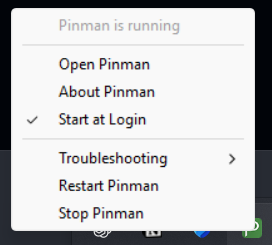
First, check the current state of Pinman's Start at Login option. You may change it now if you want to follow the other Registry path below. Whichever state you choose will become the starting point captured in Registry baseline.
- Right-click the Pinman icon in the Windows system tray.
- Note whether Start at Login has a checkmark. Optionally, select it now to change its state.
Now tell Pinman to track this setting.
- In Explore, find the Registry (winreg) root. You can collapse Files first to make room.
- Follow
HKEY_CURRENT_USER/Software/Microsoft/Windows/CurrentVersion/Run, using Scan for untracked here to reveal each level.
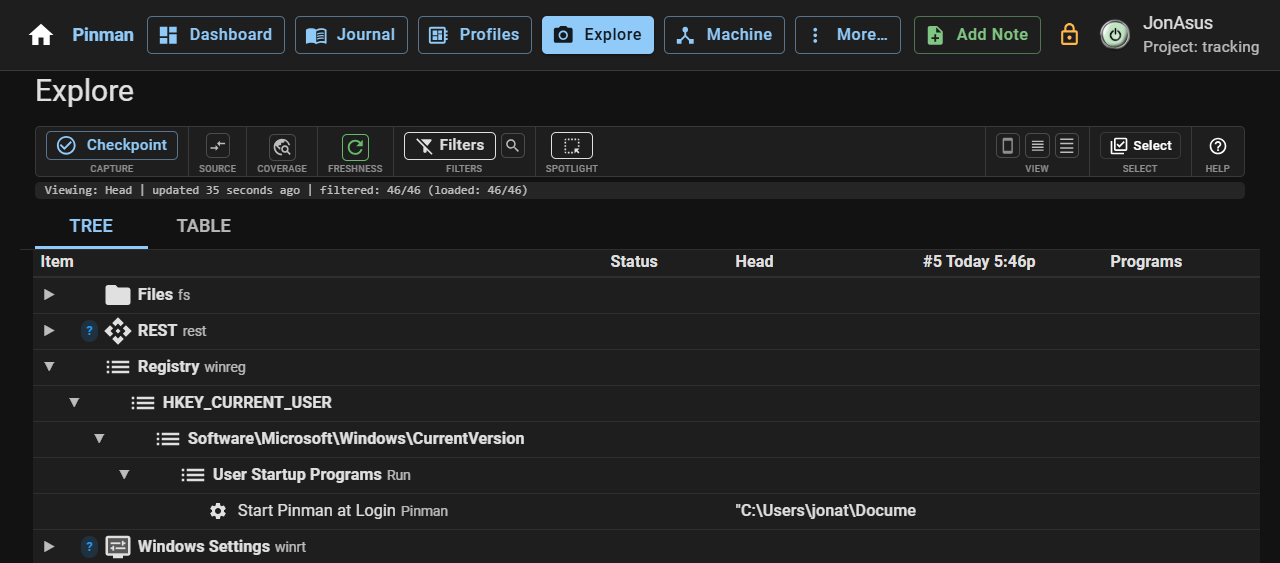
Track the Run key to give the startup value a place in the schema. Tracking the key does not track the other startup values inside it.
- Right-click
Runand select Track item…. - Set Label to User Startup Programs, then select Track.
If Start at Login is on, a Pinman value appears under the Run key. If it is
off, the value is absent. The schema can describe either starting state so that
a later appearance or disappearance is reported as a change. Follow the path
that matches your computer.
If Pinman is listed#
The value exists, so track it directly from Explore.
- If
Pinmanis listed, right-click it and select Track item…. - If
Pinmanis listed, set Label to Start Pinman at Login, then select Track.
If Pinman is not listed#
There is no row to track in Explore. Add the missing value to the schema beneath the tracked Run key instead. Add child item… creates a definition whether or not the value currently exists.
- If
Pinmanis not listed, open More → Schema and find User Startup Programs. - If
Pinmanis not listed, right-click User Startup Programs and select Add child item….
Item Type identifies the definition as a Registry value. Selector names the value within the Run key.
- For an absent value, ensure that Item Type is
winreg_property, then set Selector toPinman. - For an absent value, set Label to Start Pinman at Login, then select Add.
Both paths now define the same Registry value in the schema.
- If you used the Schema page, return to Explore.
- Right-click User Startup Programs and select Refresh.
Start Pinman at Login appears beneath User Startup Programs. The other values in the Run key remain outside the schema.
Capture the Registry baseline#
Capture the current startup state before changing it. This gives Pinman a fixed Reference for the comparison.
- Create a Checkpoint titled Registry baseline with Files + settings, Tracked only and Record only. Wait for it to complete.
Registry baseline contains the verified application configuration and the presence or absence of Pinman's startup value.
See a real Registry change#
Now change Pinman's startup setting outside Pinman. This changes only Pinman's own startup entry, and you will restore it immediately afterward.
- Right-click the Pinman icon in the Windows system tray and select Start at Login to switch the setting.
- In Explore, select Refresh.
Start Pinman at Login now differs from Registry baseline. Turning the setting on adds the Registry value; turning it off removes the value. If the value was absent when you started, the definition you added on the Schema page told Pinman where to look before the value existed.

- Right-click the Pinman system tray icon and select Start at Login again to restore the state captured in Registry baseline.
- In Explore, select Refresh.
Start Pinman at Login agrees with Registry baseline again.
What we did#
You added one precise Registry value to the schema, including its expected absence, then used Registry baseline to see the real value appear or disappear. Other startup values stayed outside tracking.
Next, you'll extend the schema to Windows master audio settings.
Instructions#
-
Right-click the Pinman icon in the Windows system tray.
-
Note whether Start at Login has a checkmark. Optionally, select it now to change its state.
-
In Explore, find the Registry (winreg) root. You can collapse Files first to make room.
-
Follow
HKEY_CURRENT_USER/Software/Microsoft/Windows/CurrentVersion/Run, using Scan for untracked here to reveal each level. -
Right-click
Runand select Track item…. -
Set Label to User Startup Programs, then select Track.
-
If
Pinmanis listed, right-click it and select Track item…. -
If
Pinmanis listed, set Label to Start Pinman at Login, then select Track. -
If
Pinmanis not listed, open More → Schema and find User Startup Programs. -
If
Pinmanis not listed, right-click User Startup Programs and select Add child item…. -
For an absent value, ensure that Item Type is
winreg_property, then set Selector toPinman. -
For an absent value, set Label to Start Pinman at Login, then select Add.
-
If you used the Schema page, return to Explore.
-
Right-click User Startup Programs and select Refresh.
-
Create a Checkpoint titled Registry baseline with Files + settings, Tracked only and Record only. Wait for it to complete.
-
Right-click the Pinman icon in the Windows system tray and select Start at Login to switch the setting.
-
In Explore, select Refresh.
-
Right-click the Pinman system tray icon and select Start at Login again to restore the state captured in Registry baseline.
-
In Explore, select Refresh.