

Chapters · Chapter 5 of 7
Prove the schema works
Change the workstation and see precise, useful differences without unrelated churn.
Joining here?
Stop Pinman, run this command, then start Pinman again. It rebuilds the sample project up to this point, discarding any work you have already done in it.
pinman tutorial goto proveWhat to expect#
A useful schema turns workstation changes into a clear explanation. In this chapter, you'll change all three fictional applications and compare Head with the baseline you just captured. Pinman will show added, removed and modified files, exact setting changes, and none of the recorder log noise you excluded.
Schema authoring workflow
- Choose what mattersfirst tracked file
- Describe configurationsettings + labels
- Keep noise outMatching Rules
- Prove the schemacompare with baseline
- Extend beyond filesRegistry + Windows
Steps#
Use the baseline as the Reference#
In Explore, Head is the live Capture of the current machine state. Explore compares Head with the Reference, a saved Capture. Your newest Checkpoint, Tracked workstation baseline, is now the Reference.
A tutorial drift changes the tutorial files outside Pinman, much as an application or another person would. The first drift updates one codec, removes another and moves the available HDR codec into active use.
-
In PowerShell, run:
pinman tutorial drift work -
Return to Explore and select Refresh.
-
Expand
media-encoder/codecs.
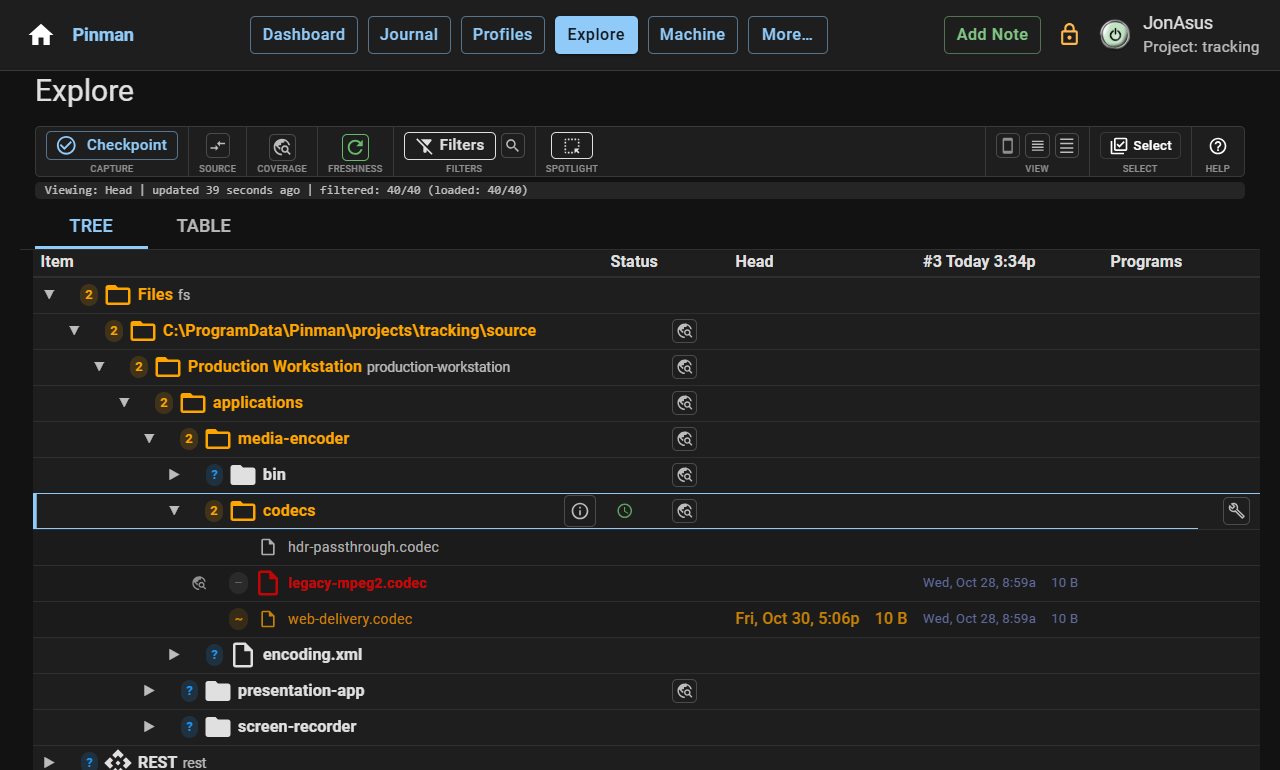
Against Tracked workstation baseline, web-delivery.codec is Modified,
legacy-mpeg2.codec is Removed and hdr-passthrough.codec is Added. You did not
track the HDR codec by name; the *.codec Matching Rule included it when it
arrived.
See the settings that changed#
The next drift changes selected settings across all three applications. It also writes to the recorder log inside the folder you track automatically.
-
In PowerShell, run:
pinman tutorial drift prepare -
Return to Explore and select Refresh.
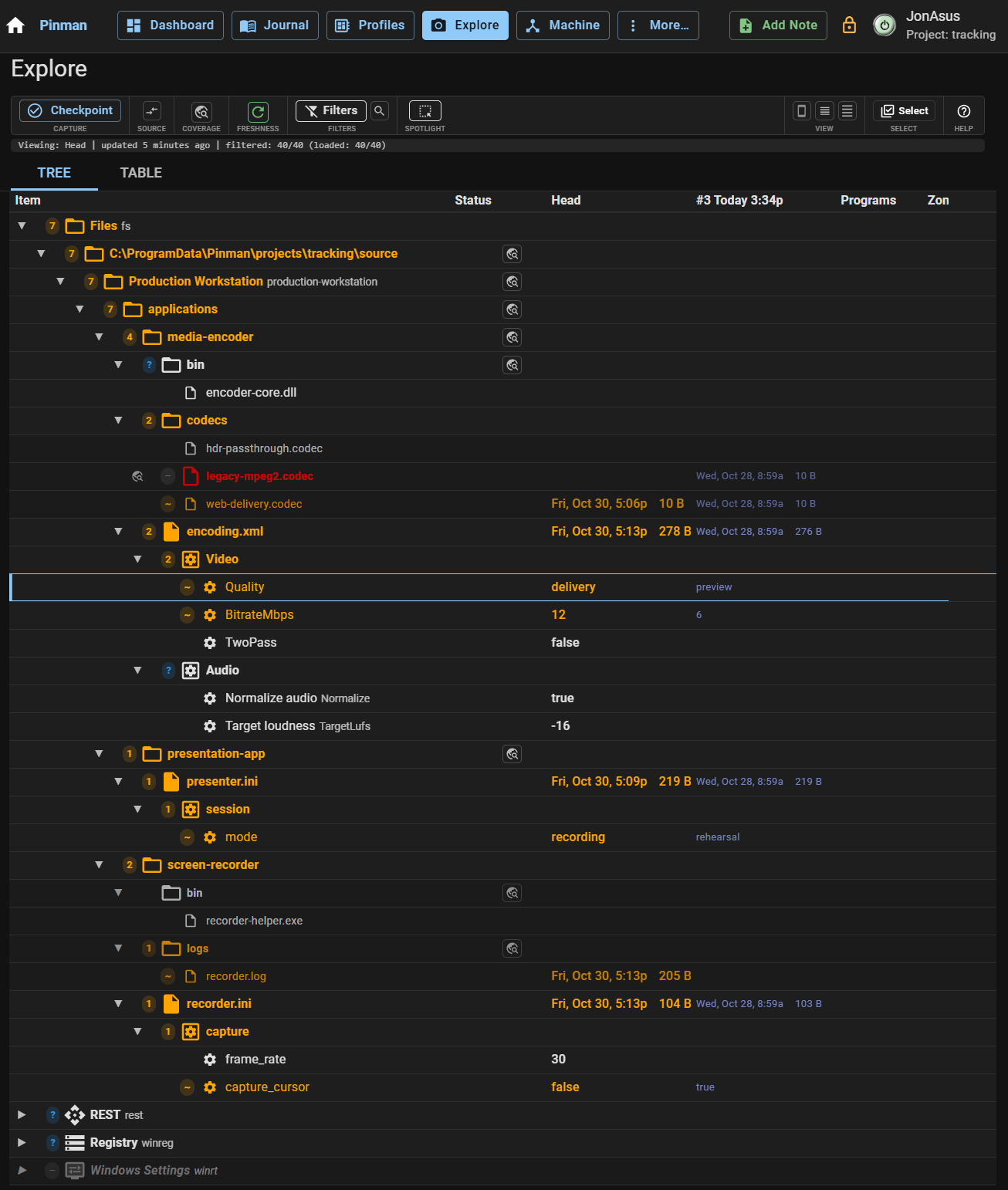
Six tracked settings now differ from the Reference:
| Setting | Reference | Head |
|---|---|---|
presenter.ini session/mode | rehearsal | recording |
recorder.ini capture/frame_rate | 30 | 60 |
recorder.ini capture/capture_cursor | true | false |
encoding.xml Video/Quality | preview | delivery |
encoding.xml Video/BitrateMbps | 6 | 20 |
encoding.xml Video/TwoPass | false | true |
The recorder log changed too, but it does not appear. The logs exclusion kept
it outside the schema even though screen-recorder is tracked automatically.
Recognize values that return to the Reference#
The Reference stays fixed while Head changes. One more drift tunes the configuration after a performance check.
-
In PowerShell, run:
pinman tutorial drift optimize -
Return to Explore and select Refresh.
capture/frame_rate is back to 30, Video/BitrateMbps is now 12, and
Video/TwoPass is back to false. The frame rate and two-pass settings match
the Reference again, so they no longer appear as changes. session/mode,
capture/capture_cursor, Video/Quality and Video/BitrateMbps still differ.
Explore compares the current Head with the Reference, not with the previous Refresh. A setting that returns to the Reference value no longer differs, regardless of the changes made along the way.
Keep the verified configuration#
The schema has explained changes across all three applications while ignoring the log files. Capture the final state for later comparisons.
- Create a Checkpoint titled Schema verified configuration with Files + settings, Tracked only and Record only. Wait for it to complete.
Schema verified configuration now holds the final workstation state.
What we did#
You compared a changing Head with one fixed Reference. Pinman identified added, removed and modified codec files, showed exact setting changes across three applications, recognized values that returned to the Reference, and ignored the changing log excluded from the schema.
Finally, you'll extend the same schema beyond files to Registry and Windows settings.
Instructions#
-
In PowerShell, run:
pinman tutorial drift work -
Return to Explore and select Refresh.
-
Expand
media-encoder/codecs. -
In PowerShell, run:
pinman tutorial drift prepare -
Return to Explore and select Refresh.
-
In PowerShell, run:
pinman tutorial drift optimize -
Return to Explore and select Refresh.
-
Create a Checkpoint titled Schema verified configuration with Files + settings, Tracked only and Record only. Wait for it to complete.